Click here to view the "Add a New Document Type" video
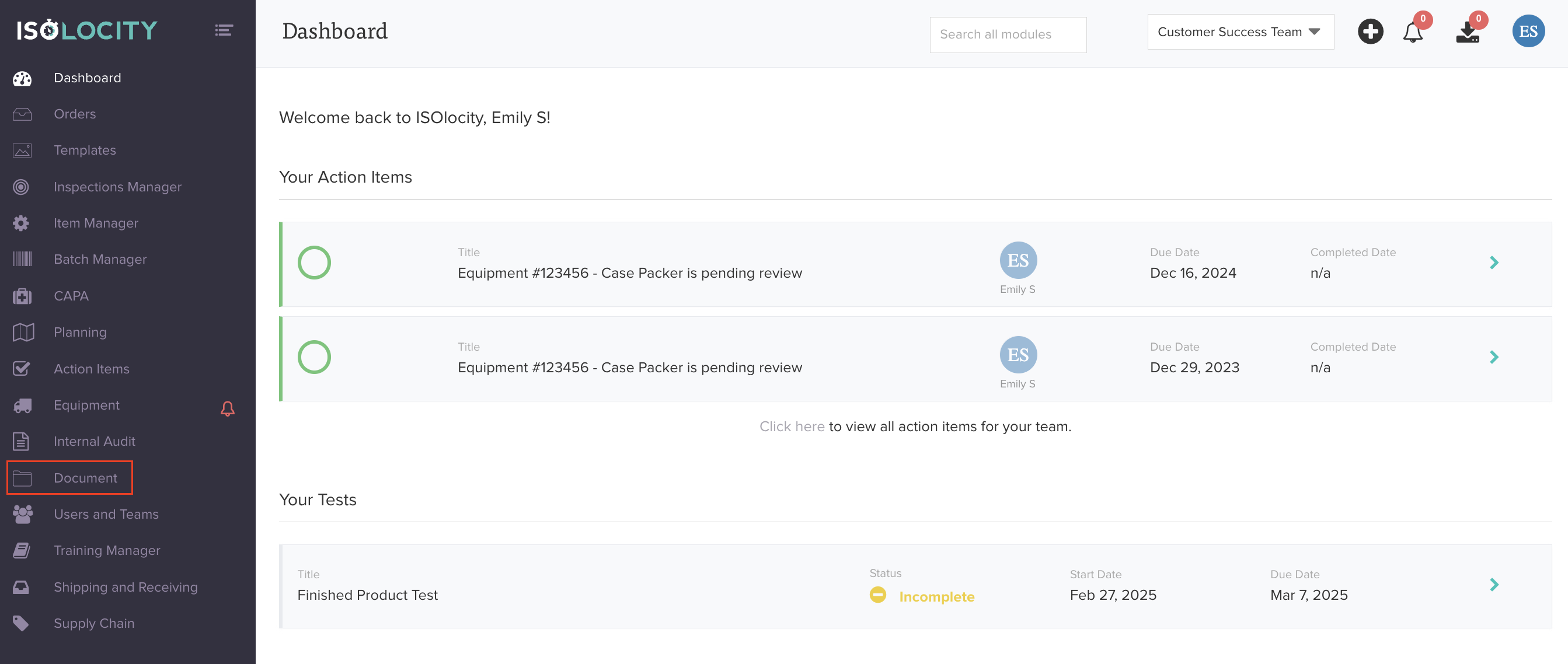
Step #1
Click here to add a new "Document Type".
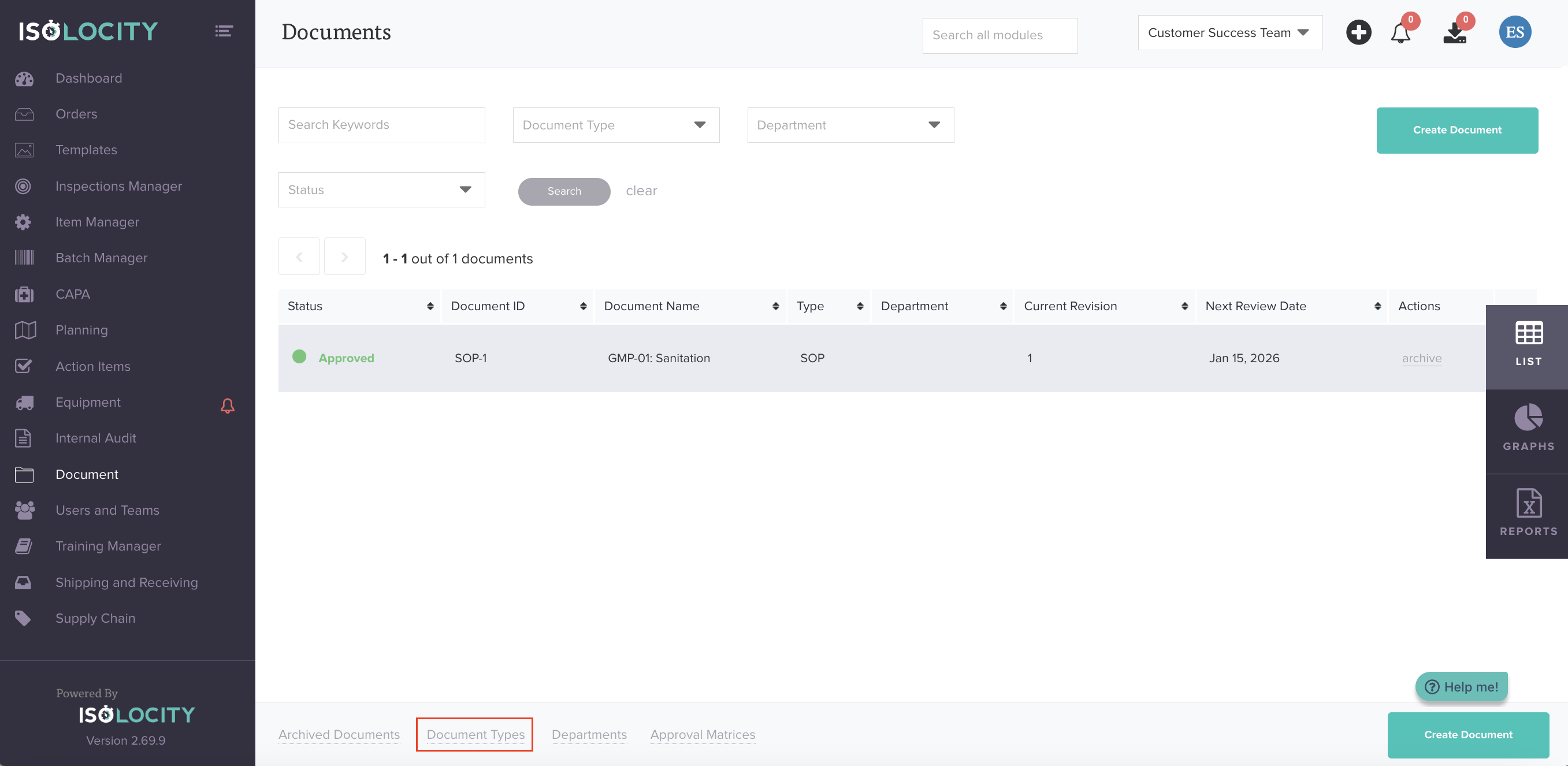
Step #2
Click here to add new "Documents Types" to your system.
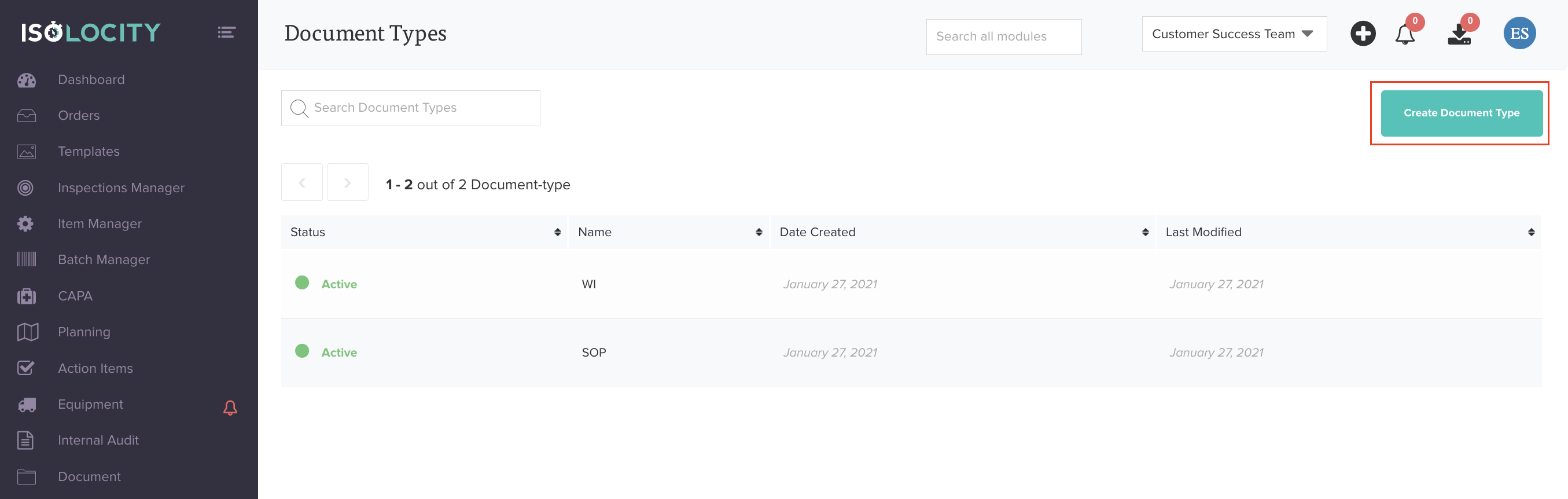
Step #3
Click here to create a new "Document Type".
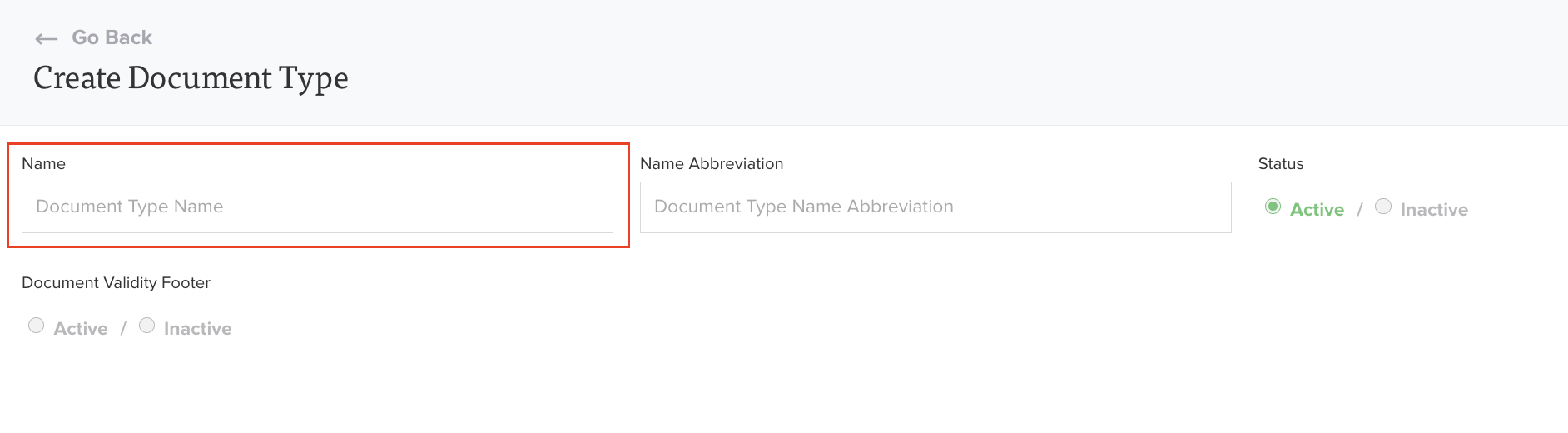
Step #4
Enter a name for your "Document Type". Provide the full name of the document type. This will be used to categorize documents and identify them throughout the system. Example: Standard Operating Procedure, Work Instruction, Form.
Step #5
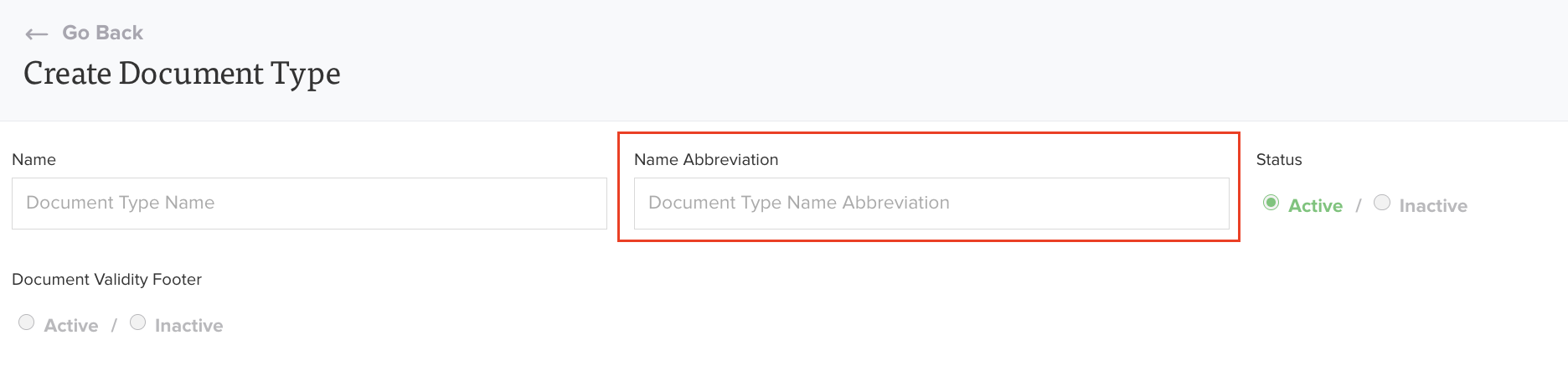
Enter "Name Abbreviation". Provide a short abbreviation for the document type. This abbreviation will be included in the document serialization to help quickly identify the type of document. Example: SOP for Standard Operating Procedure, WI for Work Instruction, FRM for Form.
Step #6
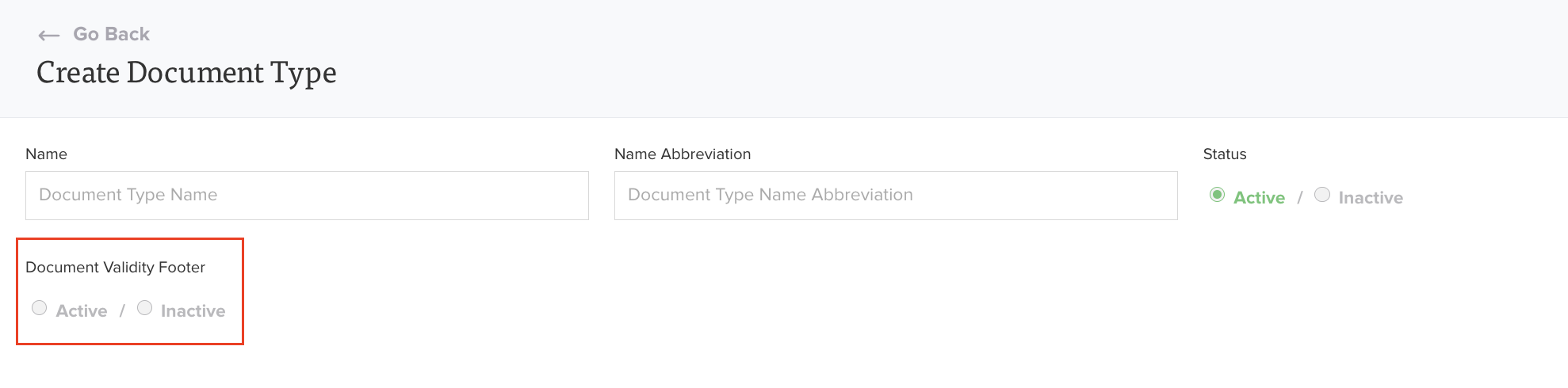
Enable Document Validity Footer. Choose whether to display a validity footer on printed copies of controlled documents. When enabled, a footer will appear on each page to indicate how many days the document is valid for.
Step #7
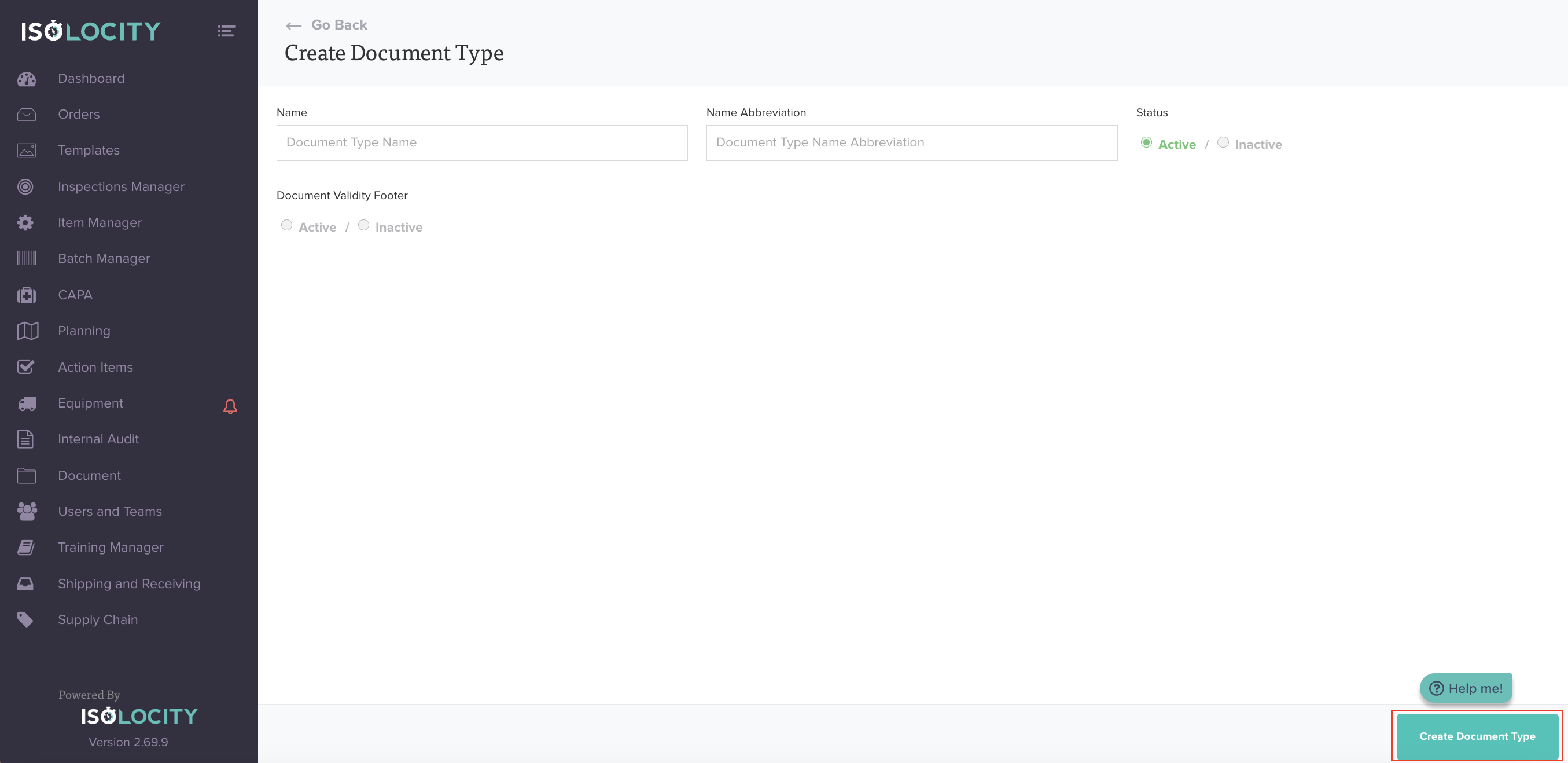
Click "Create Document Type".
Was this article helpful?
That’s Great!
Thank you for your feedback
Sorry! We couldn't be helpful
Thank you for your feedback
Feedback sent
We appreciate your effort and will try to fix the article