Click here to view our "Team Manager" Video
A Team represents a physical site or location within a multi-site organization, not a department or functional group. Assigning users to a Team determines which site(s) they can access in the system. For example, each facility or office would be a separate Team, while departments like HR or Quality Assurance are managed through departments and employee groups, not Teams.
Step #1
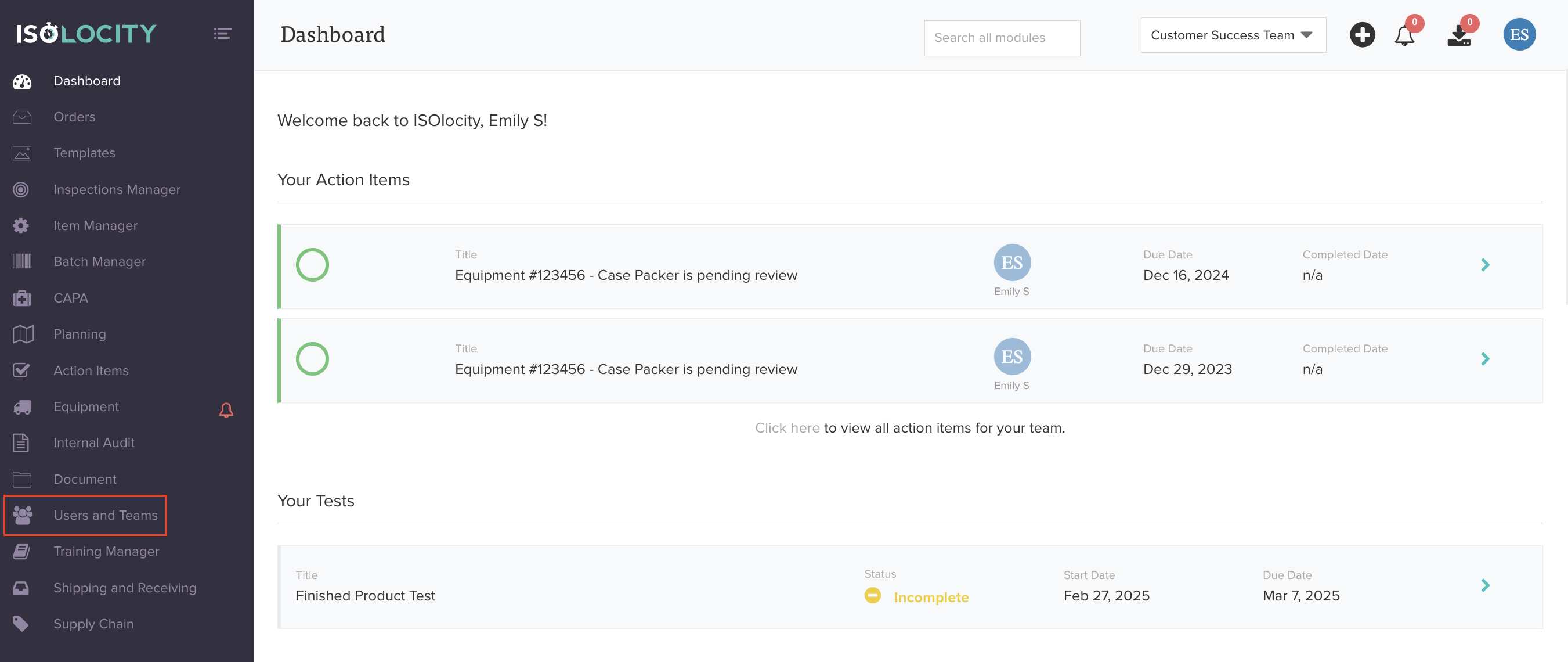
Click here to reveal the "Users & Teams" sub-menu.
Step #2
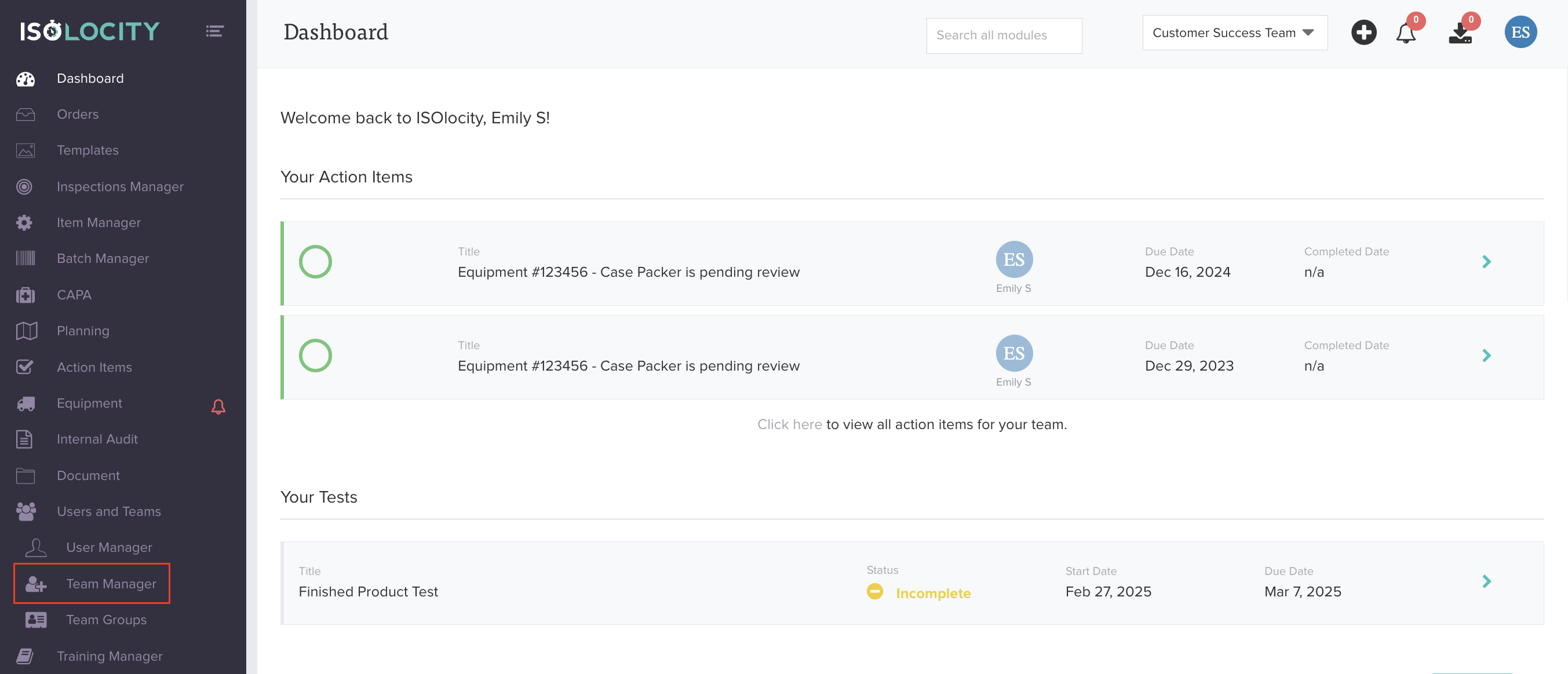
Click here to add a new "Team".
Step #3
Click "Create Team".

Step #4
Enter the "Team Name".

Step #5
Choose whether this team is active or inactive at the moment.

Step #6
Enter the order number start. Here - you can choose specific numbers that will be added to the beginning of order numbers when this team is associated. For example, if you choose the number 3 for the Toronto team. Any order that is associated with the Toronto team will have the number 3 at the beginning of their order number.

Step #7
Click "Create Team".

Note: Users are assigned to teams in the User Manager module. See the knowledge base article here.
Was this article helpful?
That’s Great!
Thank you for your feedback
Sorry! We couldn't be helpful
Thank you for your feedback
Feedback sent
We appreciate your effort and will try to fix the article