Want to add a bunch of records at once? No problem! Our team will do the upload for you, you just need to fill out the template correctly.
Step 1: Download the Template
Click the Download icon on the attachment below.
This is the only file you should use for mass uploads.
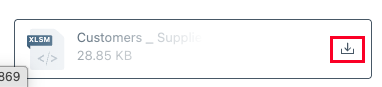
Tip: Do not create your own file or add columns, it must be this template.
Step 2: Watch the Video
We made a short video introducing the spreadsheet with a quick overview. Watch it first!
Tip: Follow the video exactly, it explains what each column means and common mistakes to avoid.
Step 3: Fill in the Template
Fill out all the required fields (columns highlighted in blue).
Don’t leave any empty spots in required fields.
Double-check that names, IDs, dates, and other info are correct.
Save your file as
is.
Important: If the template is incomplete or wrong, we can't upload it.
Tip: Make sure to avoid extra spaces or special characters in required fields to prevent upload errors.
Step 4: Send It to Us
Send the completed file to
your customer success representative.Our team will check it for mistakes.
Once everything looks good, we will upload it for you.
You’ll get a confirmation when the upload is finished.
Quick Tips
Only use the template we provide and do not add or remove columns.
Fill in every required field, blank spots will cause delays.
Double-check spelling and numbers.
If there’s a mistake, we’ll let you know so you can fix it before uploading.
If you do not have contact information for the customer or supplier, please populate the field anyway. This could look like:
Contact Name - No Designated Contact
Email - noemail@vendor.com
Phone Number - 1
FAQs
Q: Can I upload it myself?
A: No, our team handles the upload to make sure it’s done correctly.
Q: What file formats work?
A: Only the provided .xlsm file.
Q: What if I notice a mistake after sending it?
A: Send us a corrected file and we’ll update it.
Q: What if I don't have a specific contact?
A: These fields are mandatory so please still populate data. This could look like:
- Contact Name - No Designated Contact
- Email - noemail@vendor.com
- Phone Number - 1
Q: Can this template be used to update existing records?
A: No. Once records are uploaded, any changes or updates should be made directly in the system by your team as part of your ongoing QMS maintenance.
Was this article helpful?
That’s Great!
Thank you for your feedback
Sorry! We couldn't be helpful
Thank you for your feedback
Feedback sent
We appreciate your effort and will try to fix the article