Click here to view the "Suppliers" video
Step #1
Click here to access the "Supply Chain" sub-menu.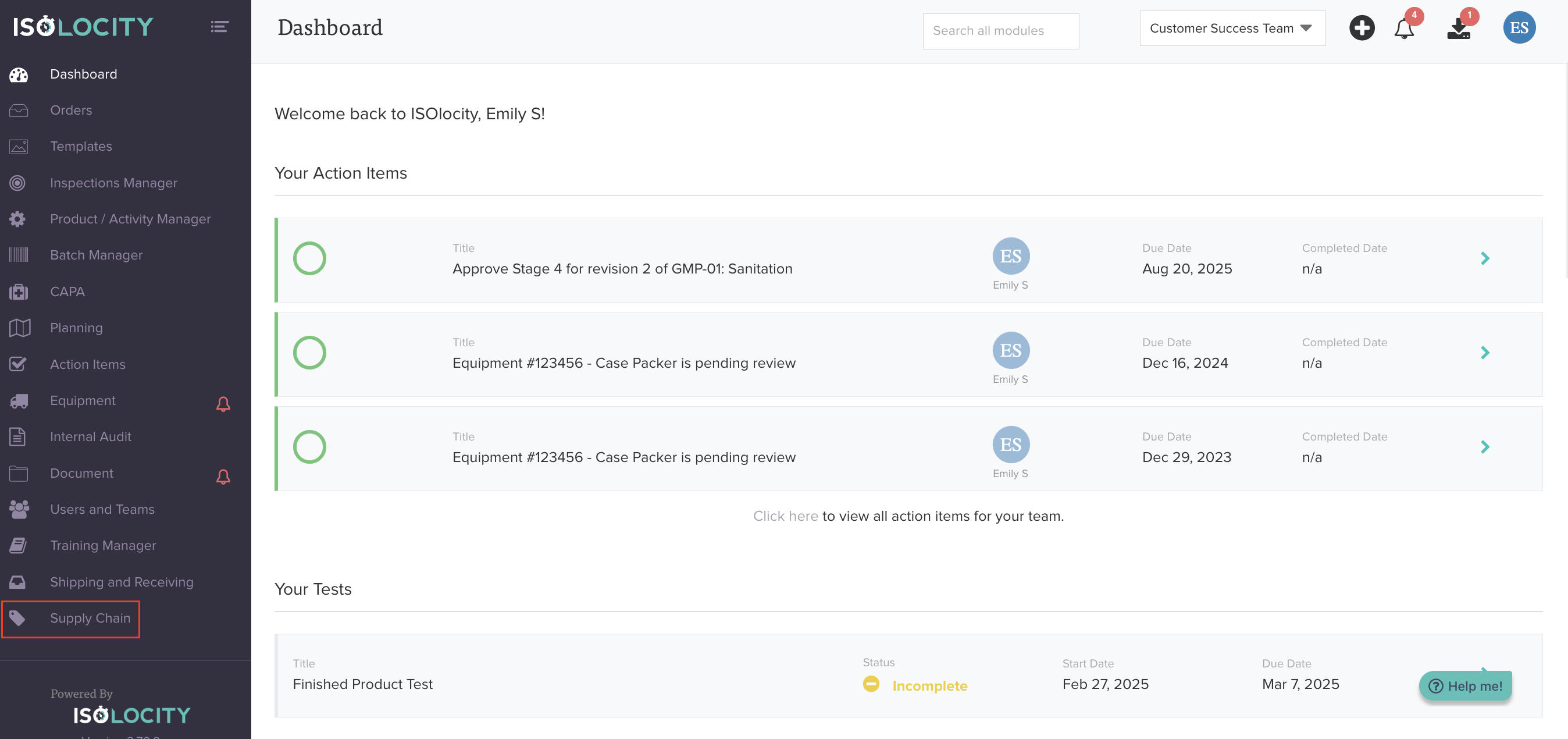
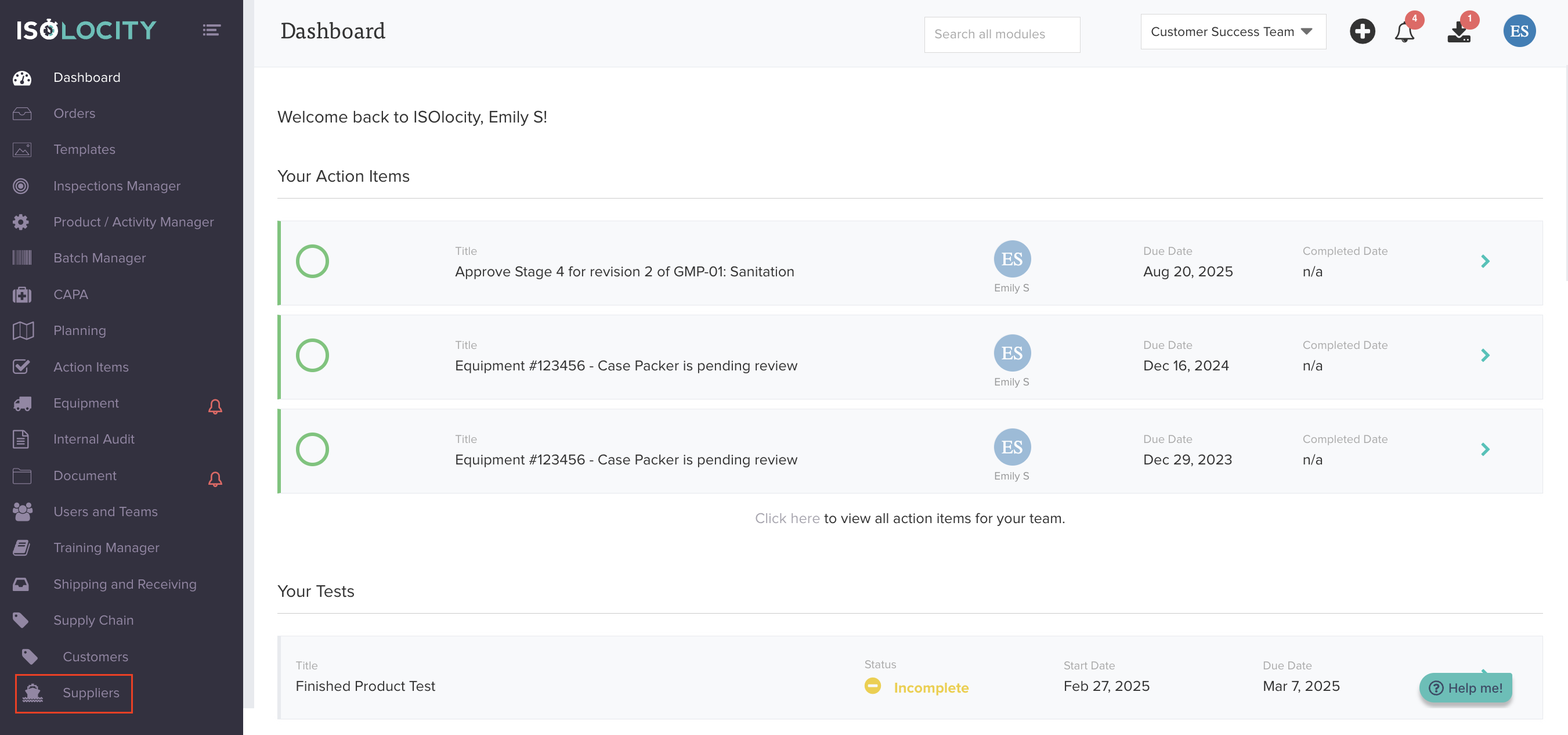
Step #2
Click "Suppliers"
Step #3
Click "Create Supplier"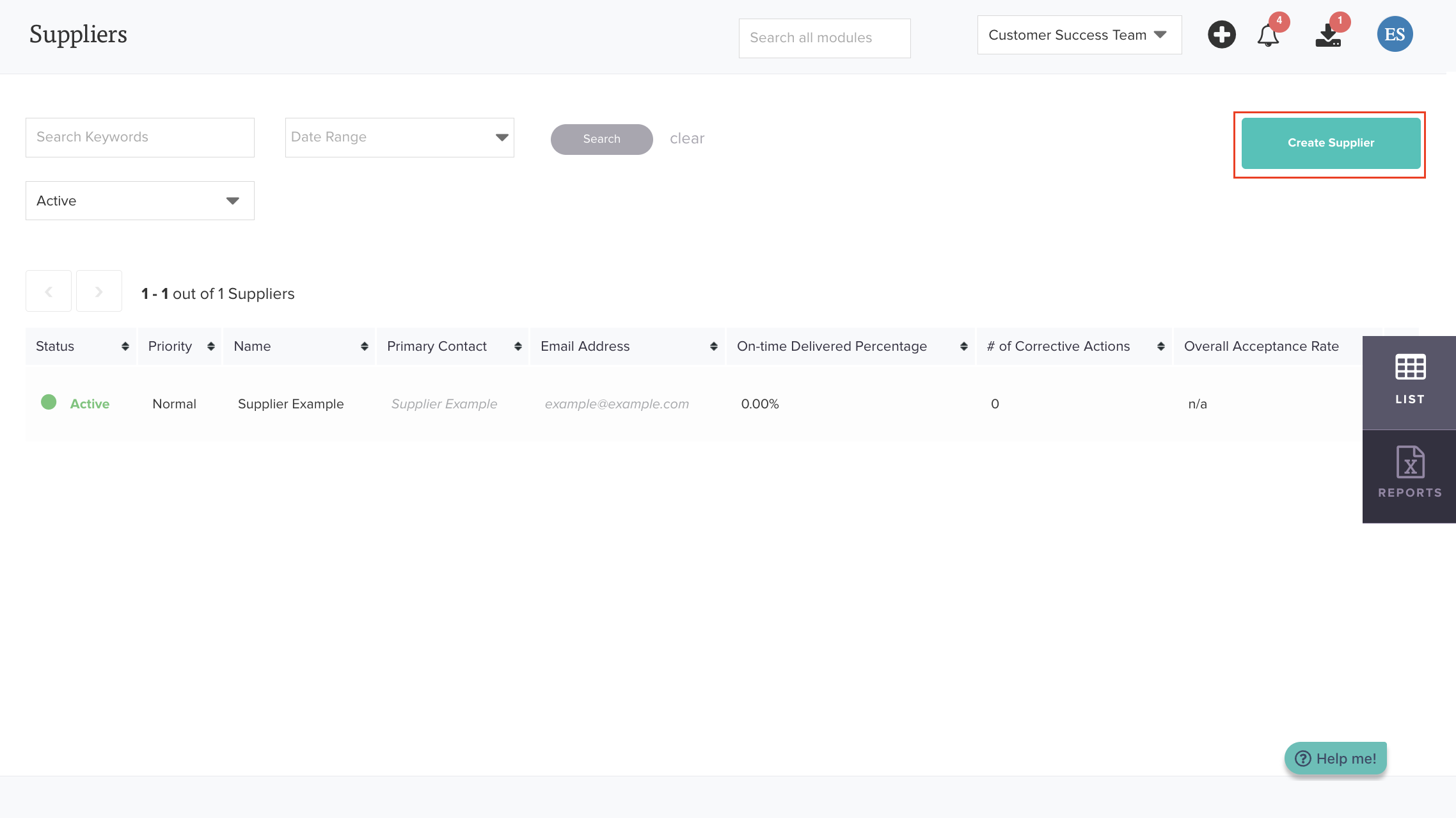
Step #4
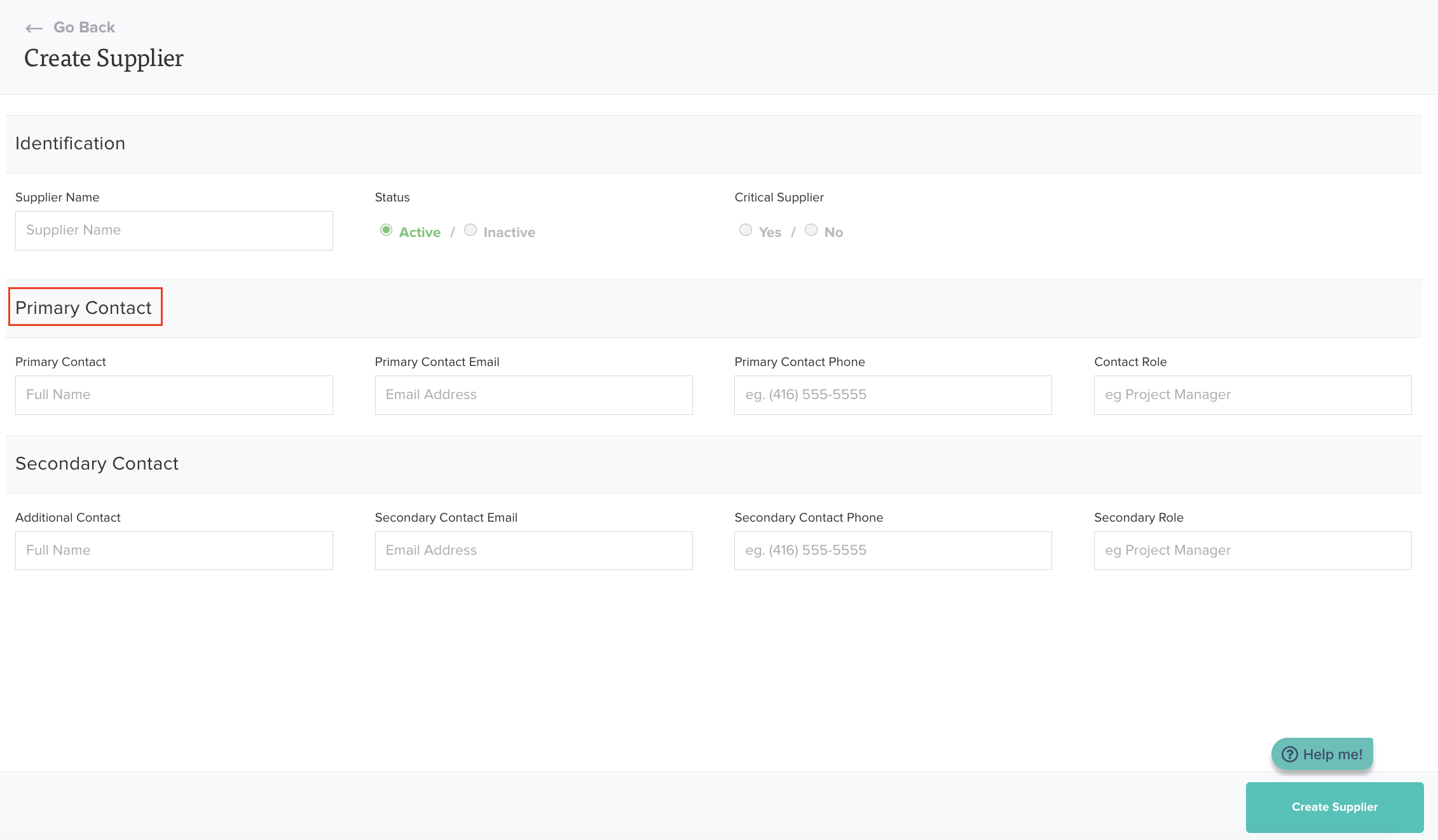
Complete the "Identification" section by completing the following fields:
- Supplier Name
- Critical Supplier

Step #5
Complete the "Primary Contact" section by completing the following fields:
- Primary Contact
- Primary Contact Email
- Primary Contact Phone
- Primary Position
Step #6
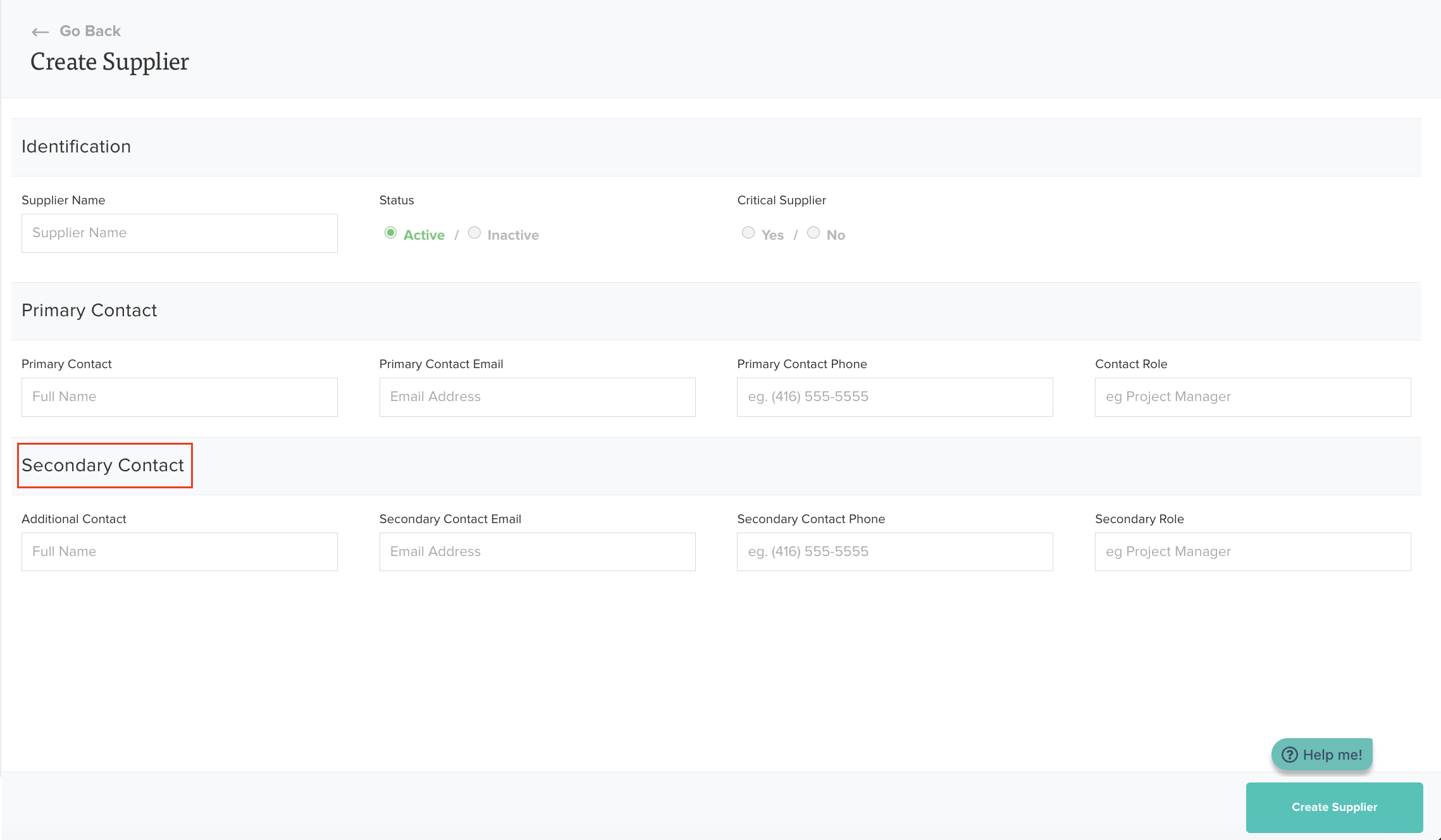
Complete the "Secondary Contact" section (optional) by completing the following fields:
- Secondary Contact
- Secondary Contact Email
- Secondary Contact Phone
- Secondary Position
Step #7
Click "Create Supplier " to save your progress.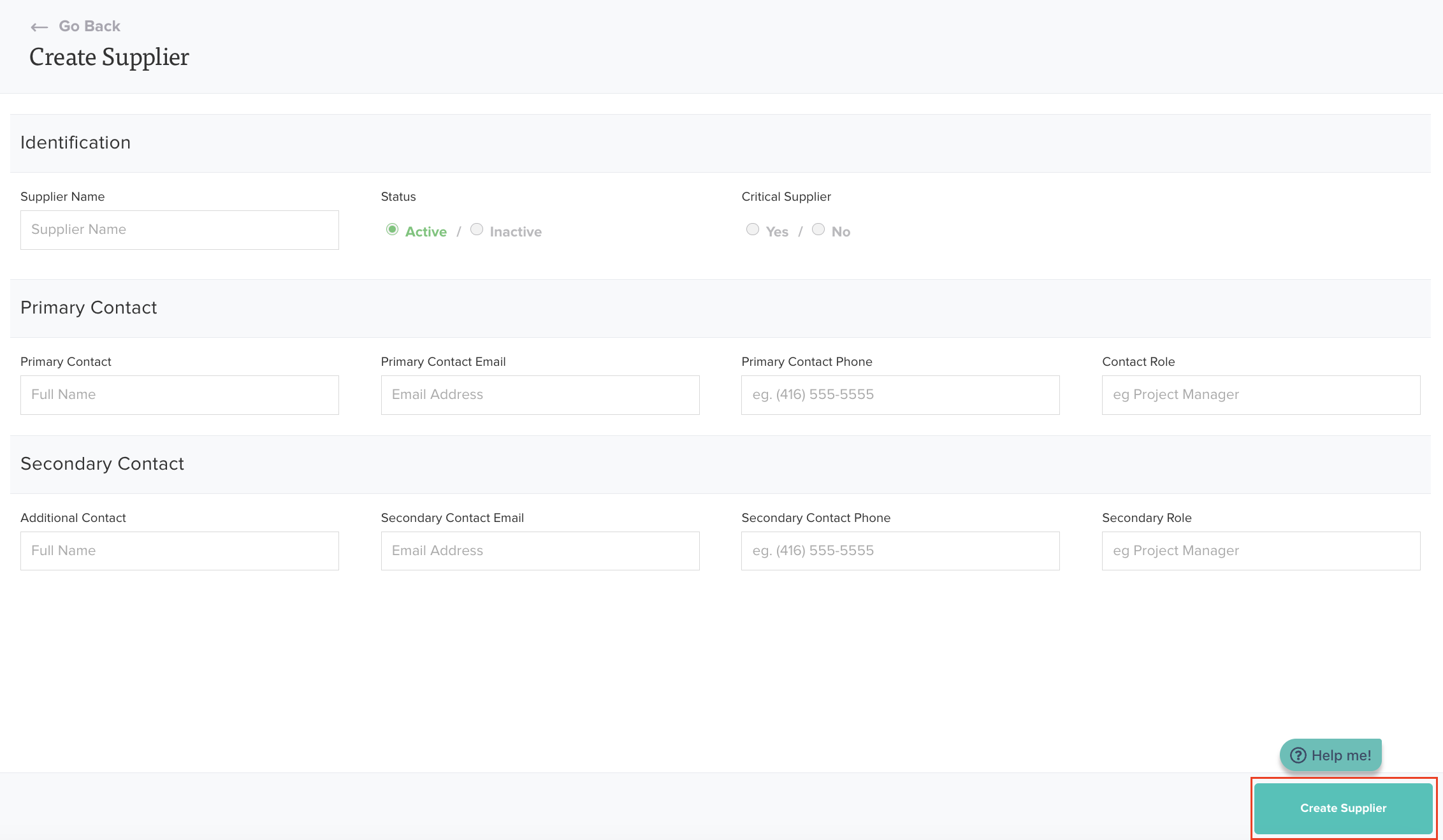
Step #8
Add an "Action Item" associated with this customer.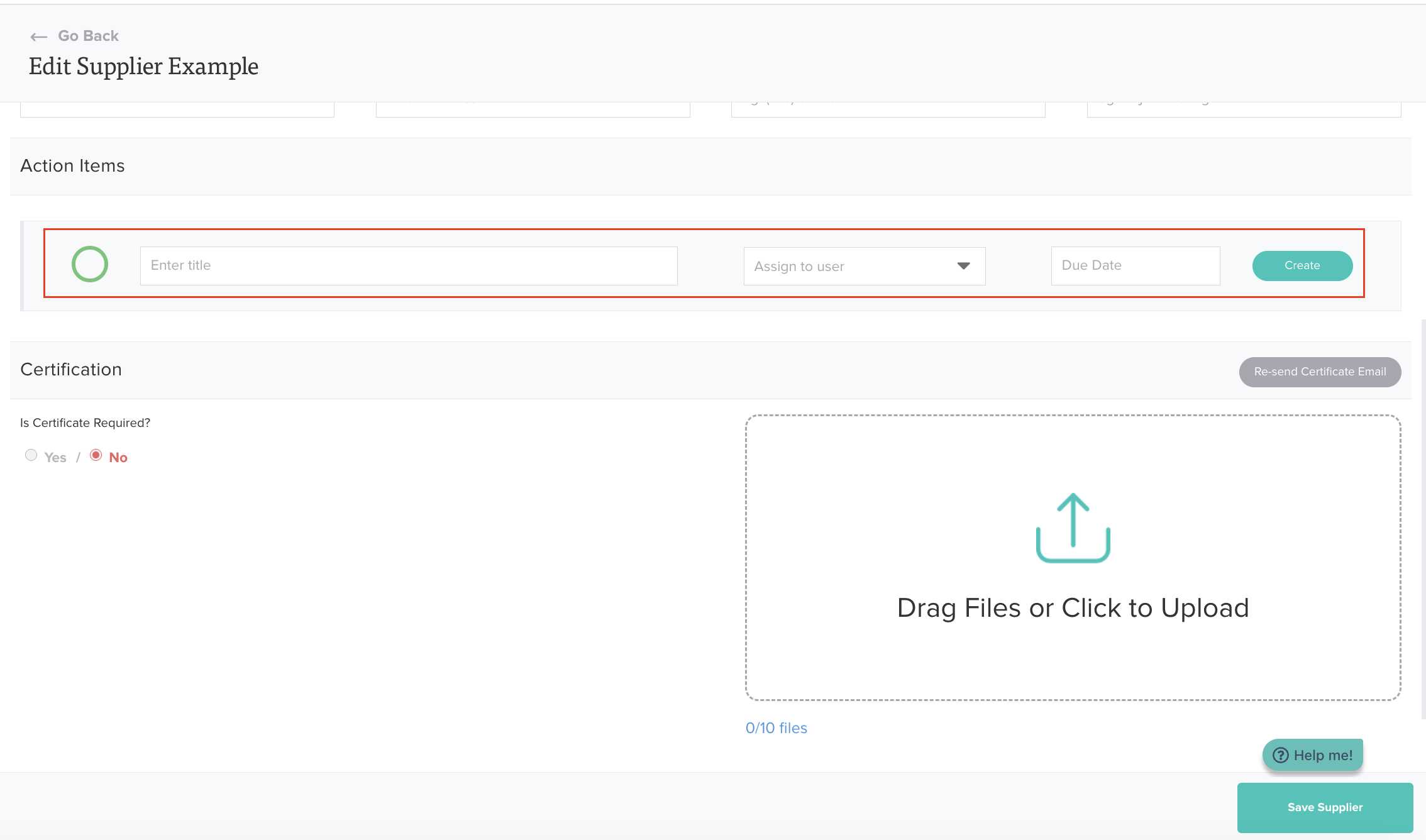
Step #9
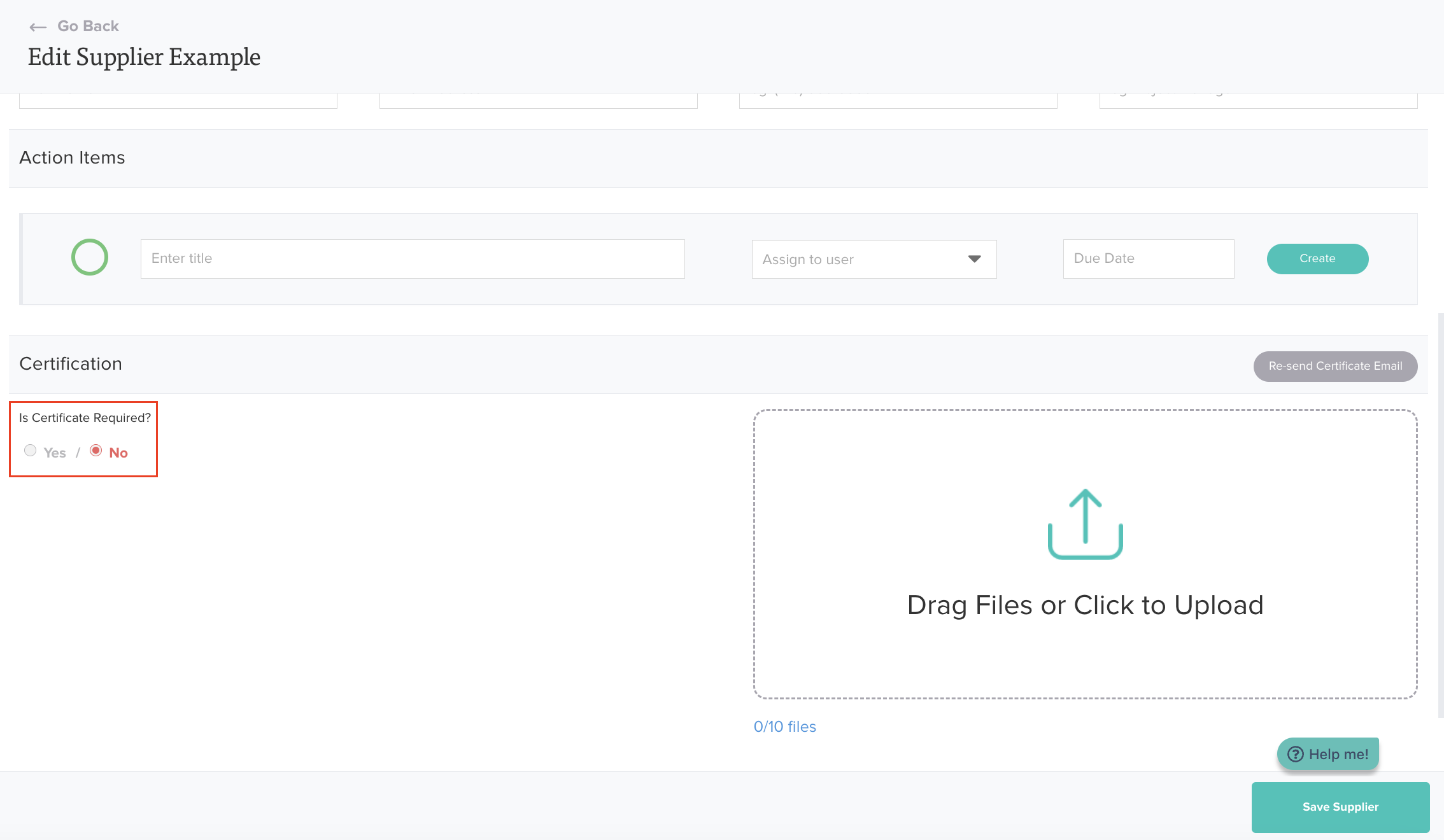
Complete the "Certification" section (optional) by completing the following fields:
- Is Certification Required?
- Latest Certificate Received?
Step #10
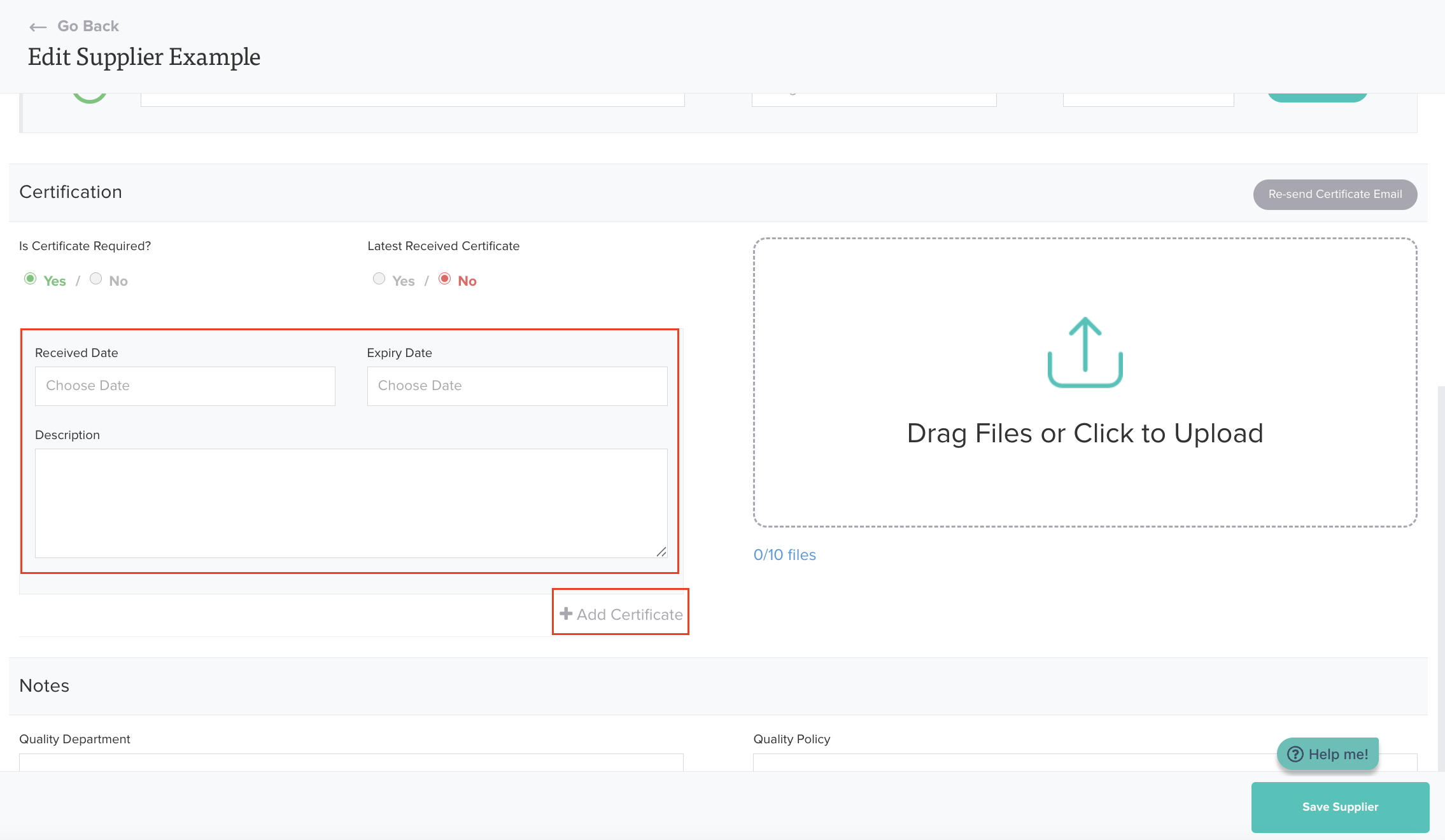
Click "Add Certificate" and complete the following fields:
- Received Date
- Expiry Date
- Description
Step #11
Upload any attachments.
Step #12
Repeat Steps 10 & 11 until all certificates are uploaded.
Step #13
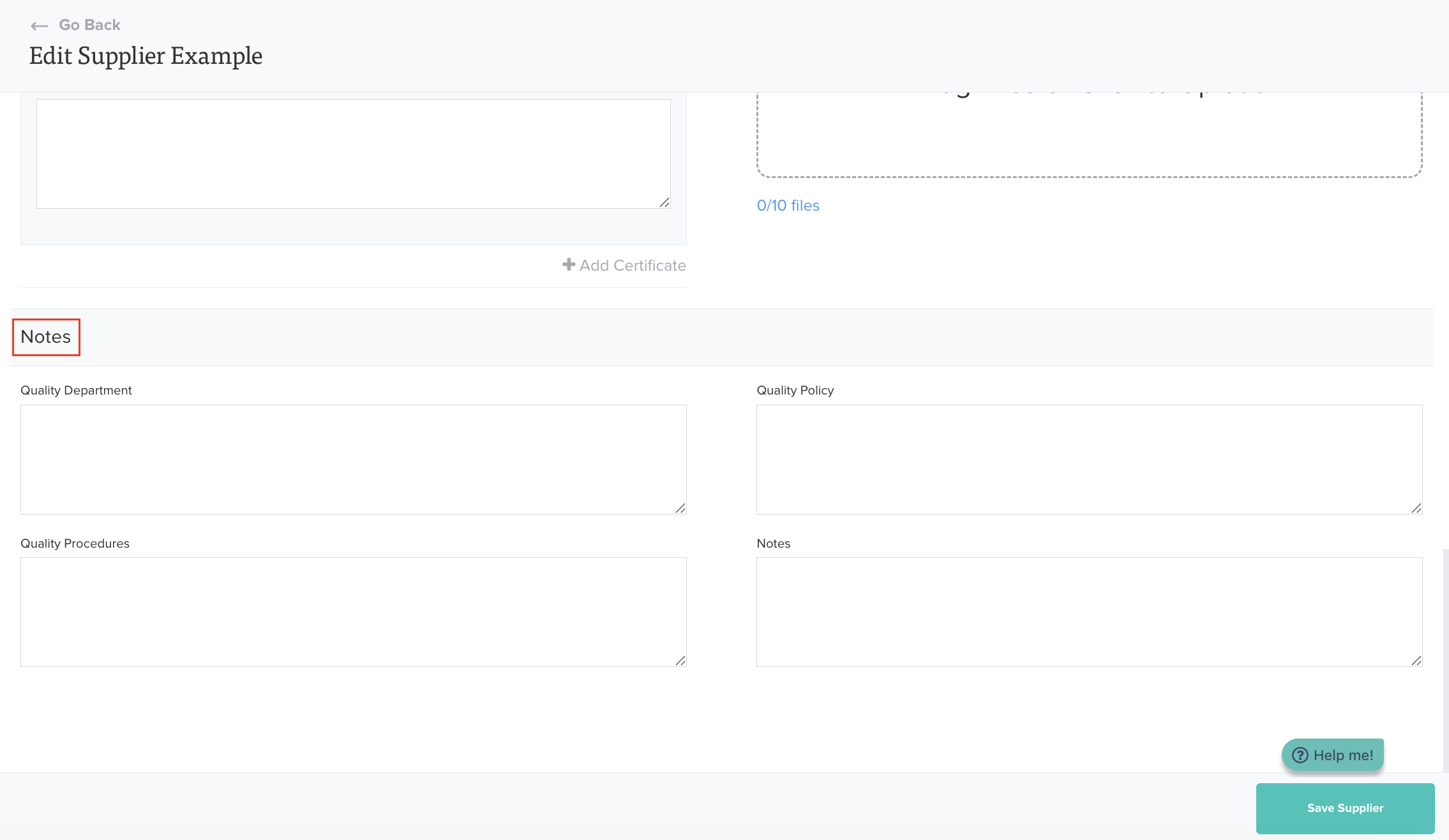
Complete the "Notes" section (optional) by completing the following fields:
- Quality Department
- Quality Policy
- Quality Procedures
- Notes
Step #14
Click "Save Supplier".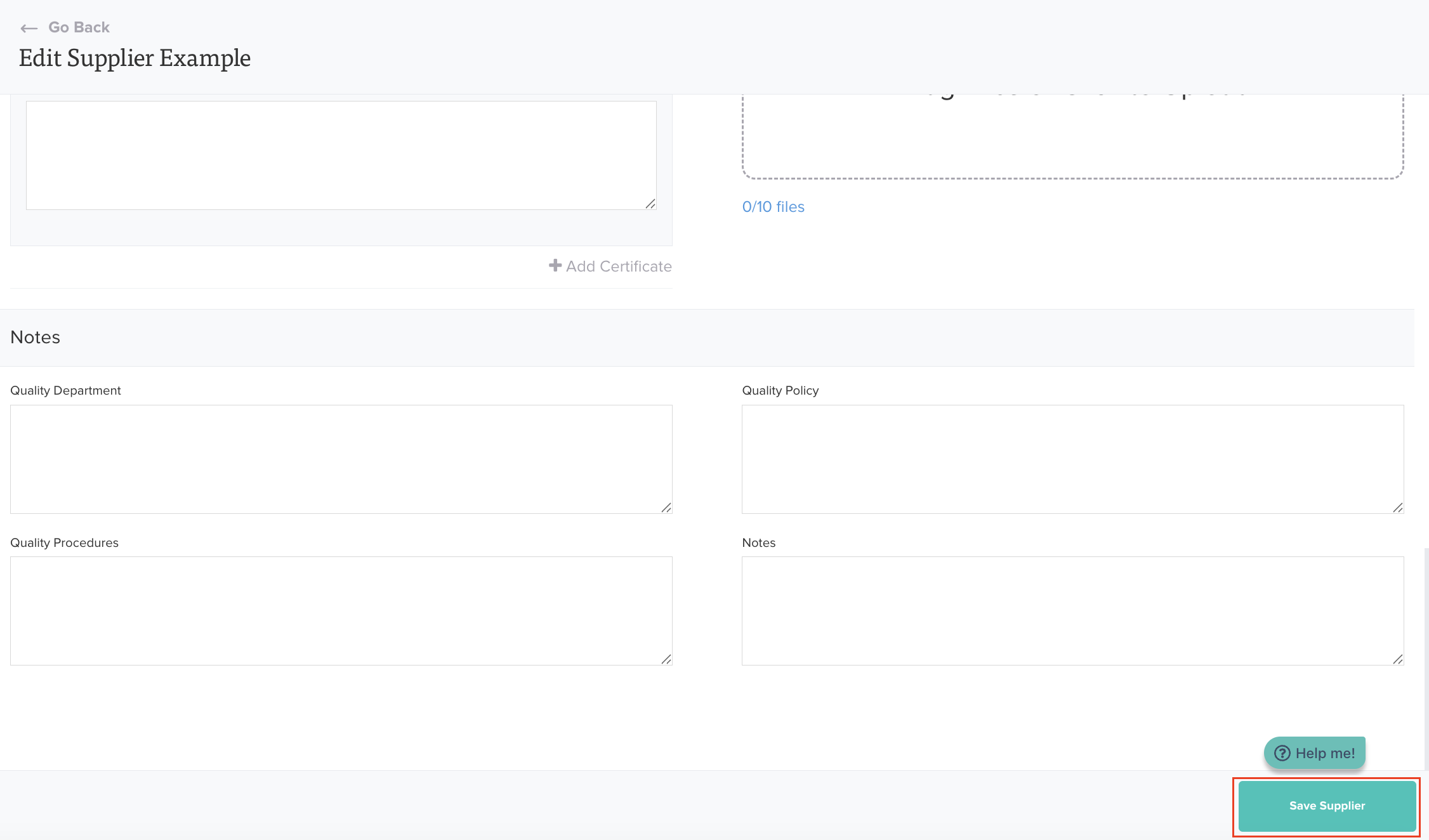
Was this article helpful?
That’s Great!
Thank you for your feedback
Sorry! We couldn't be helpful
Thank you for your feedback
Feedback sent
We appreciate your effort and will try to fix the article