You can add or remove Document Owners from a document's Document Information section. If the document is already effective, you will need to re-open it first.
Before you Start
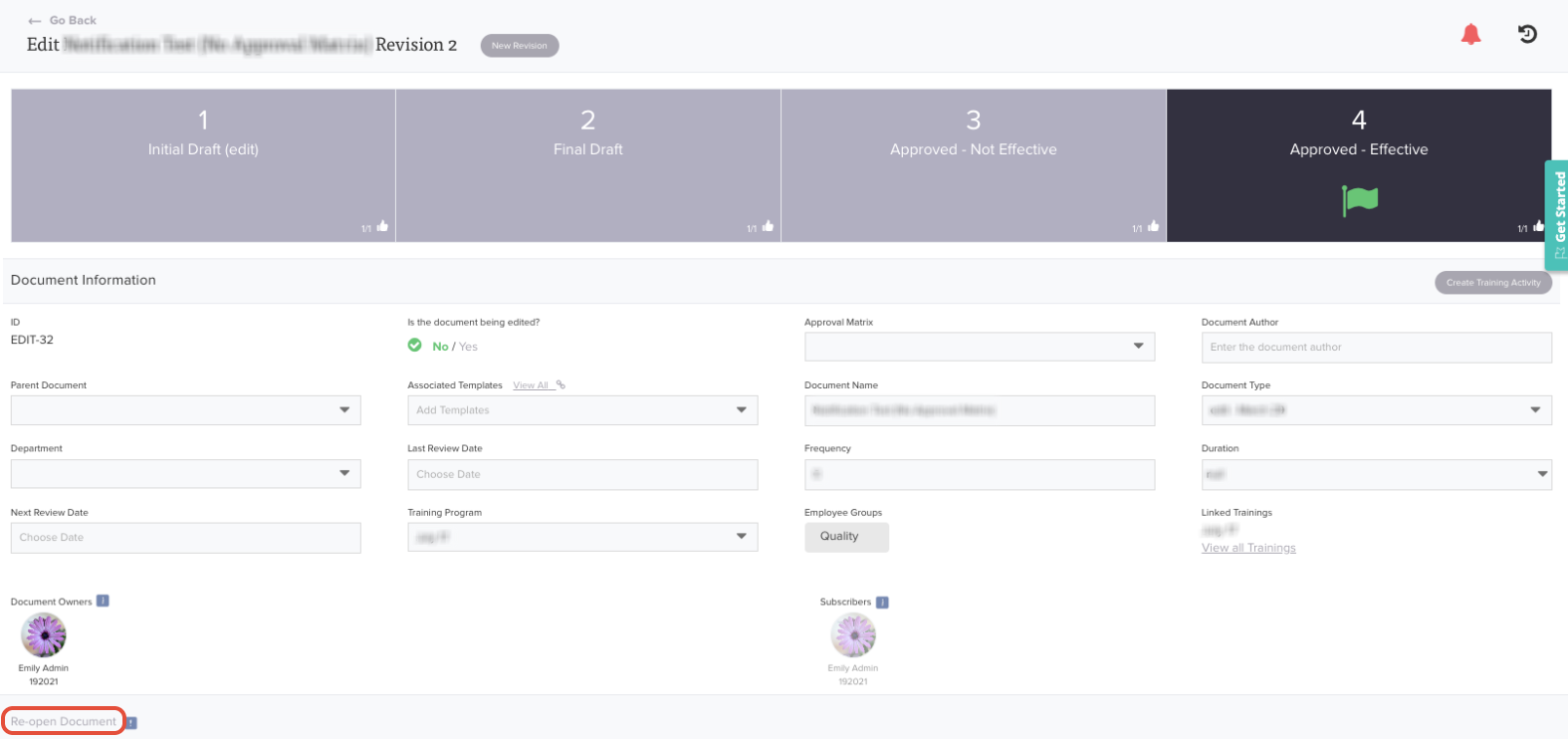
Document Owners can only be changed while the document is editable. If the document has reached its effective stage, use the Re-open Document button to make it temporarily editable. Only Admins can re-open a document, and it does not stay re-opened, so the Admin who re-opens it needs to make the owner change and save it. If you don't have Admin access, ask an Admin to make the change for you.
This process is the same whether your team uses 3-stage or 4-stage document approval. In both setups, an effective document is re-opened the same way, and owners are added and removed from the same place.
Steps
1. Open the document. Go to the Documents module and open the document you want to update.
2. Re-open the document if it is effective. Click Re-open Document in the bottom left corner of the page. A confirmation message will show that the document is now temporarily editable. This step requires Admin access, and the document does not stay re-opened, so the same Admin should complete the remaining steps. If the document is not yet effective, skip this step.
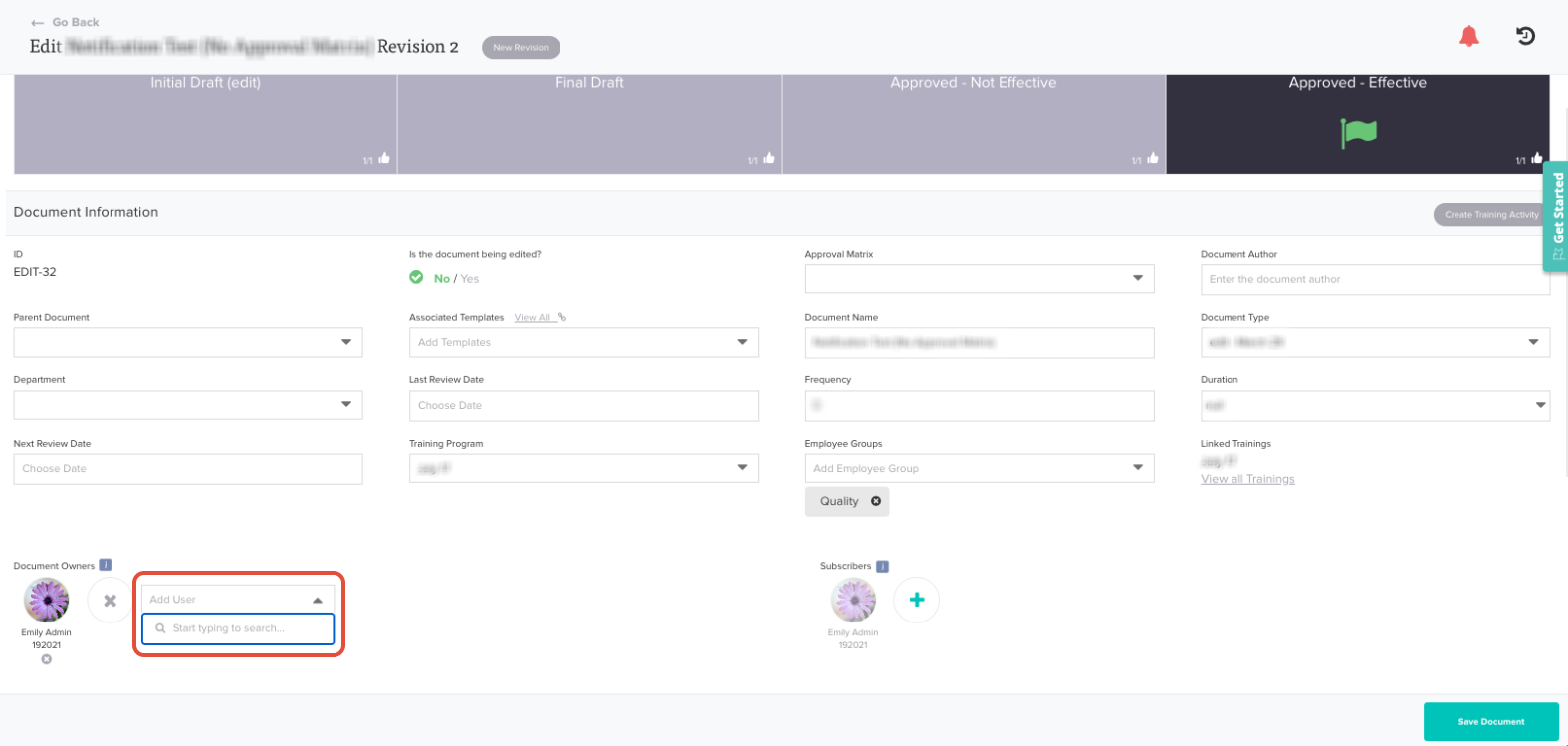
3. Add an owner. In the Document Information section, find Document Owners and click the + icon. Start typing the person's name and select them from the list. Repeat for each owner you want to add.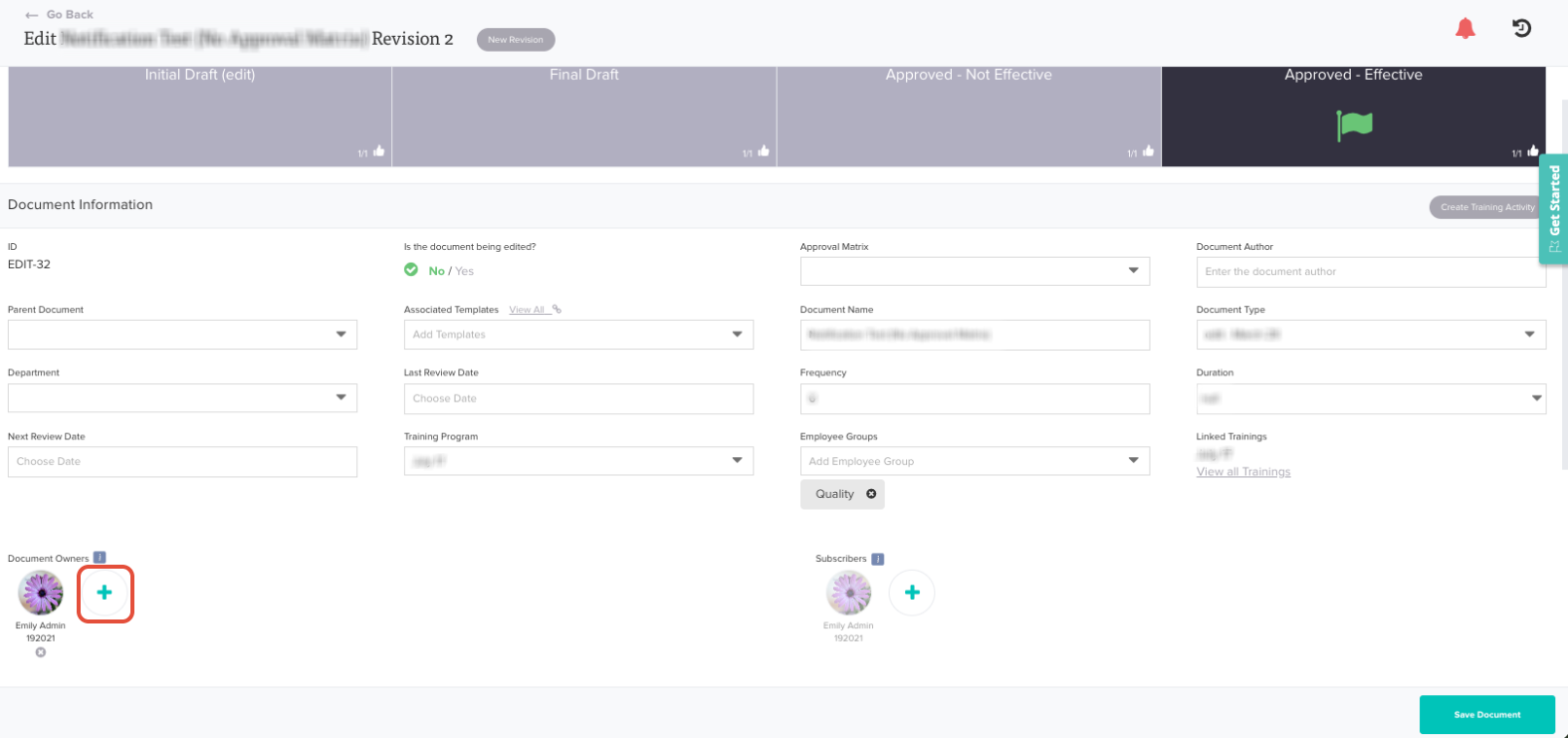
4. Remove an owner. Click the x icon below the name of the owner you want to remove.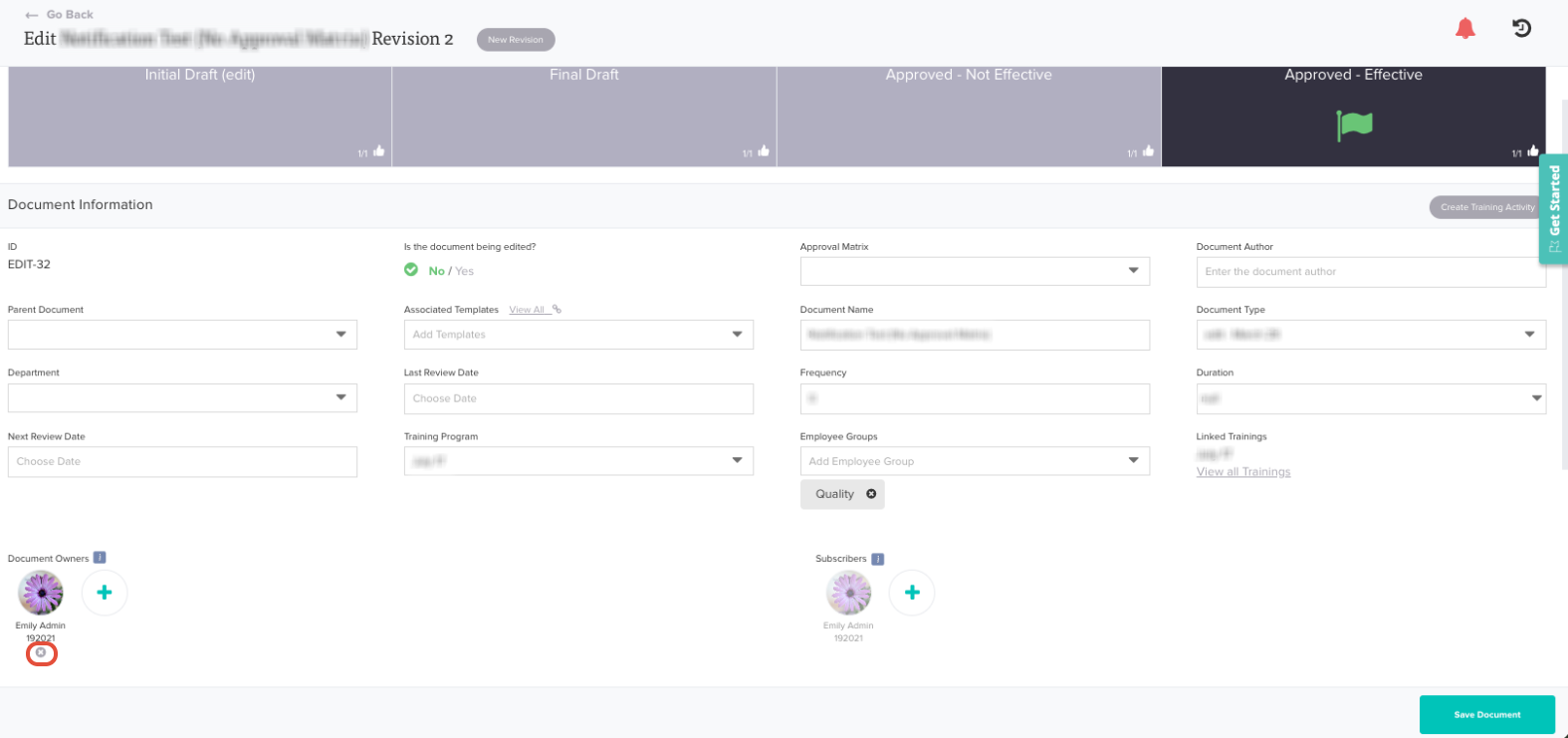
5. Save your changes. Click Save Document in the bottom right corner. Your changes will not be kept unless you save.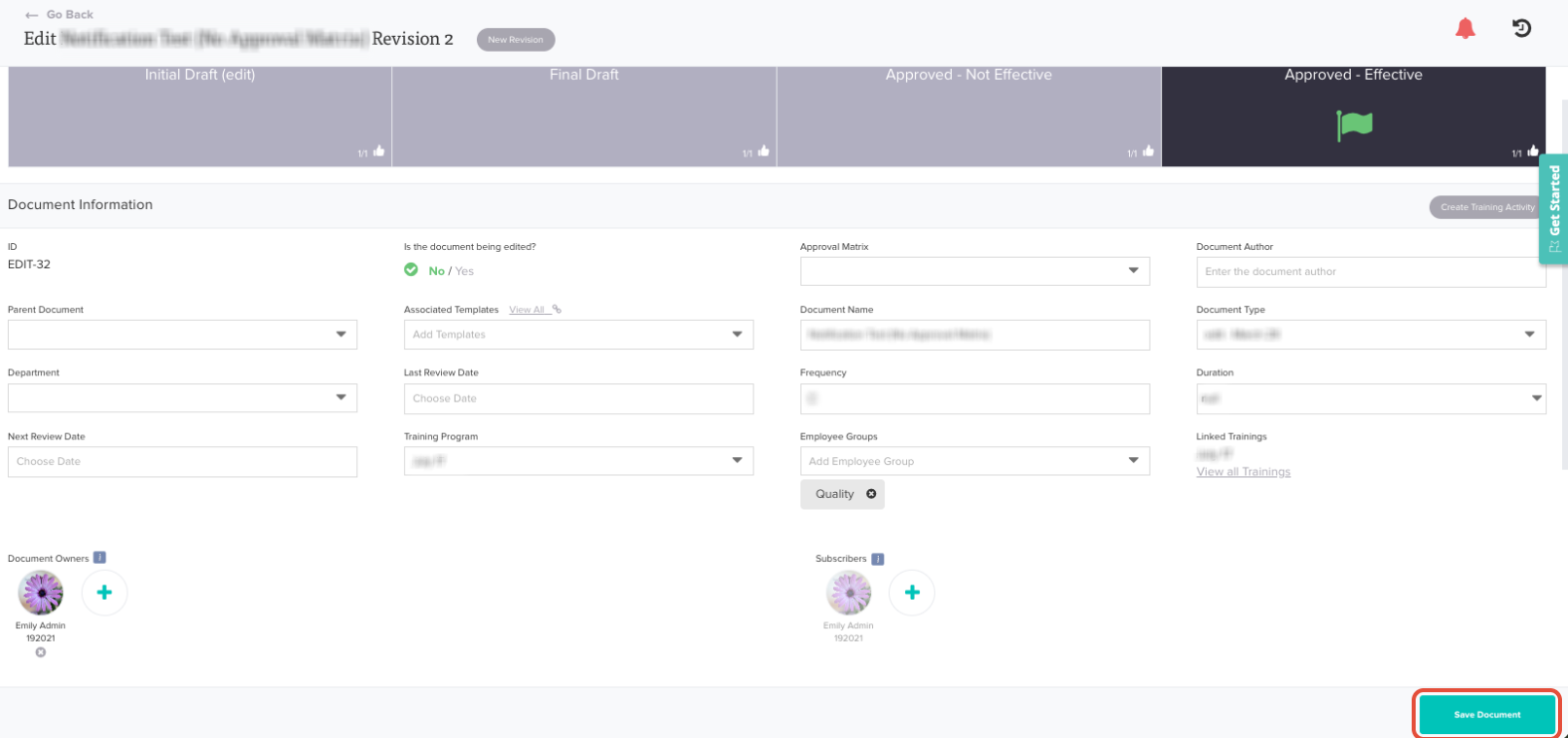
Tip: A document can have more than one owner, so you can add a new owner before removing the previous one to make sure the document is never left without an owner.
Was this article helpful?
That’s Great!
Thank you for your feedback
Sorry! We couldn't be helpful
Thank you for your feedback
Feedback sent
We appreciate your effort and will try to fix the article