Click here to view the "Add a New Employee Group" video
Step #1
Click here to access "Training Manager".
Note: Depending on when your organization began using Isolocity, this module may appear as “Human Resources” instead of its current name.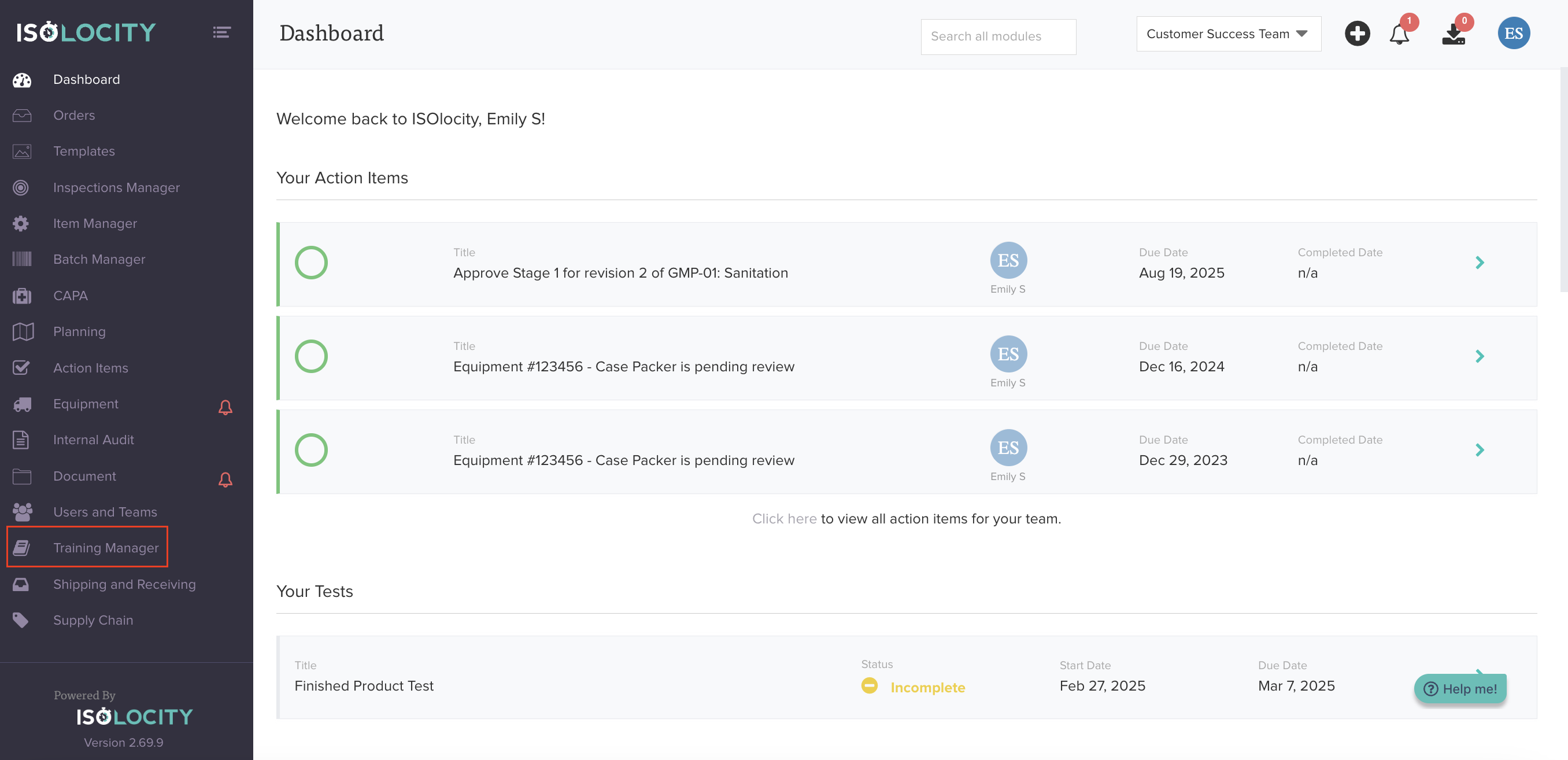
Step #2
Click "Employee Groups".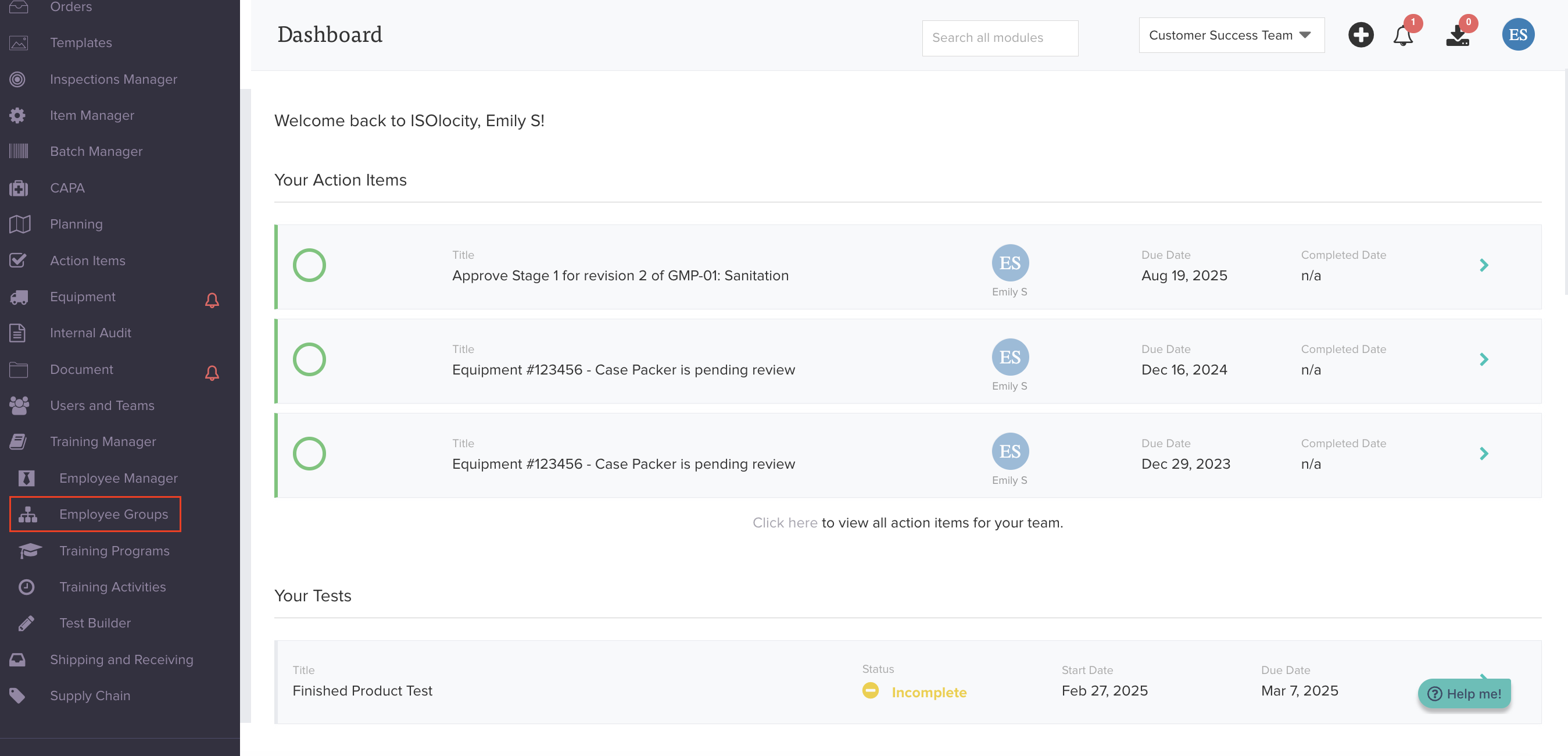
Step #3
Click "Create An Employee Group".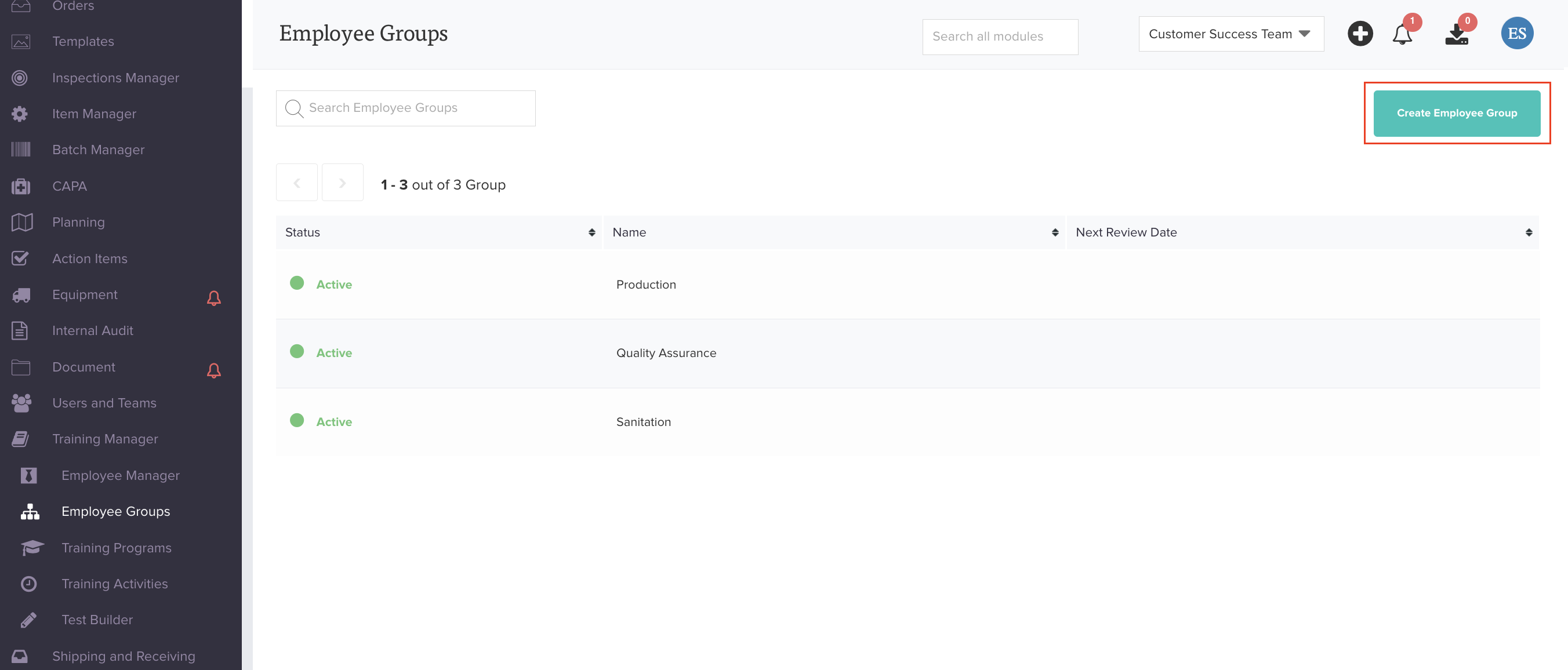
Step #4
Enter a "Group Name". Employee Groups are training groups that also control document permissions. Most clients set them up by department, while others use job titles.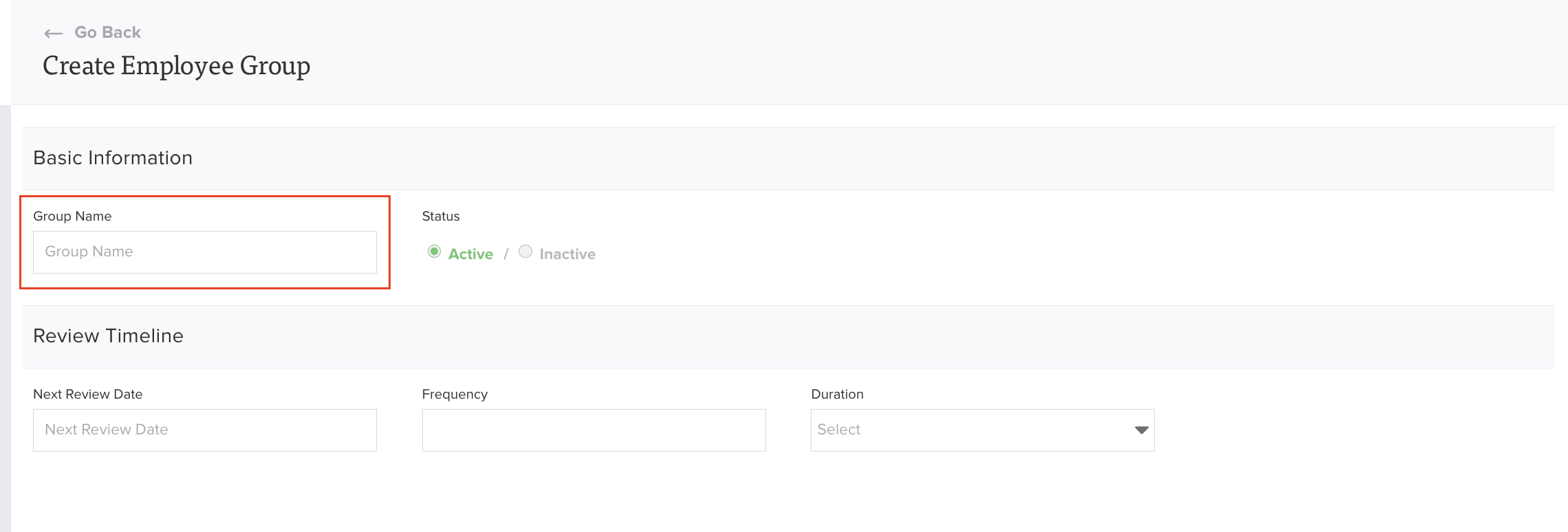
Step #5
Enter the "Next Review Date". 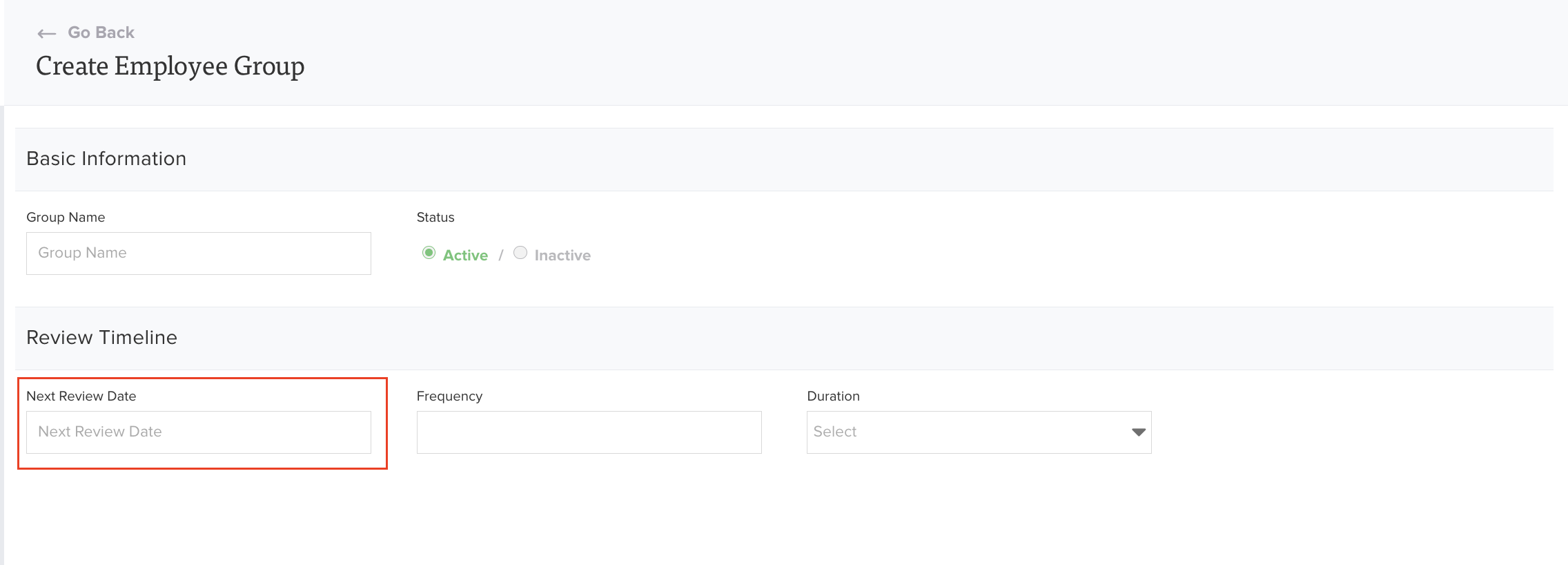
Step #6
Enter the "Frequency" and "Duration". Specify the Frequency (number) and Duration (days, months, or years) for the employee group review. Example: Frequency = 12, Duration = months → Next Review Date is 12 months from today.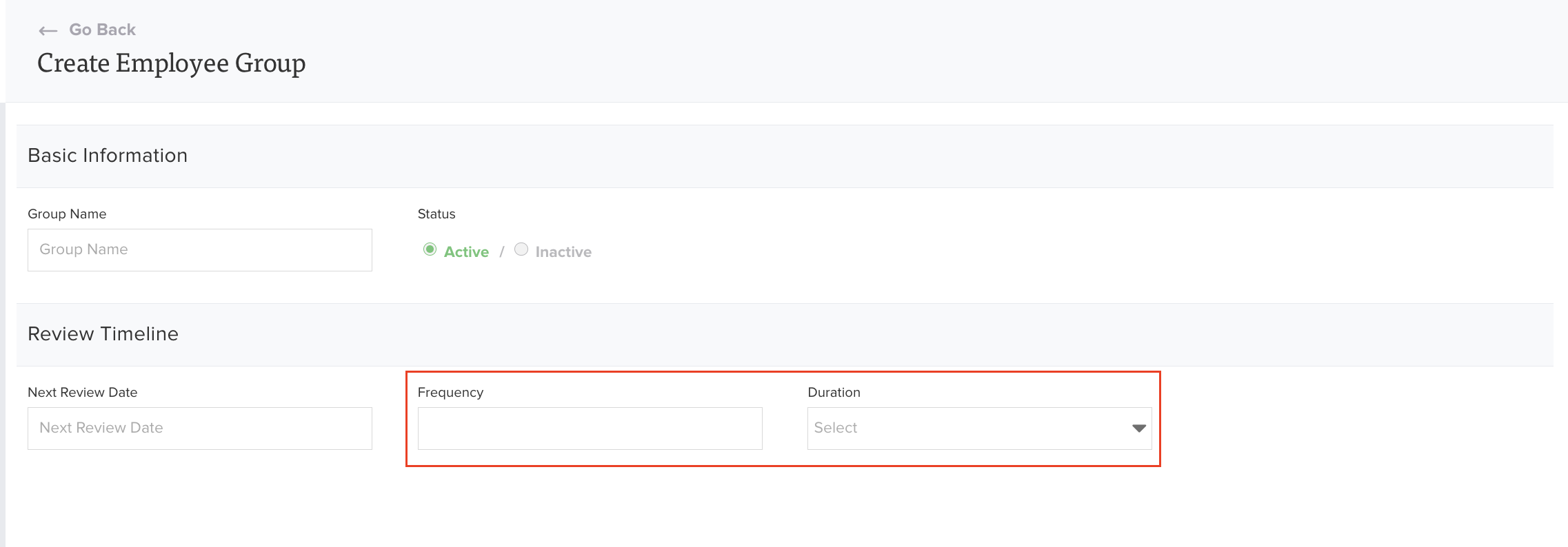
Step #7
Click "Create Employee Group". 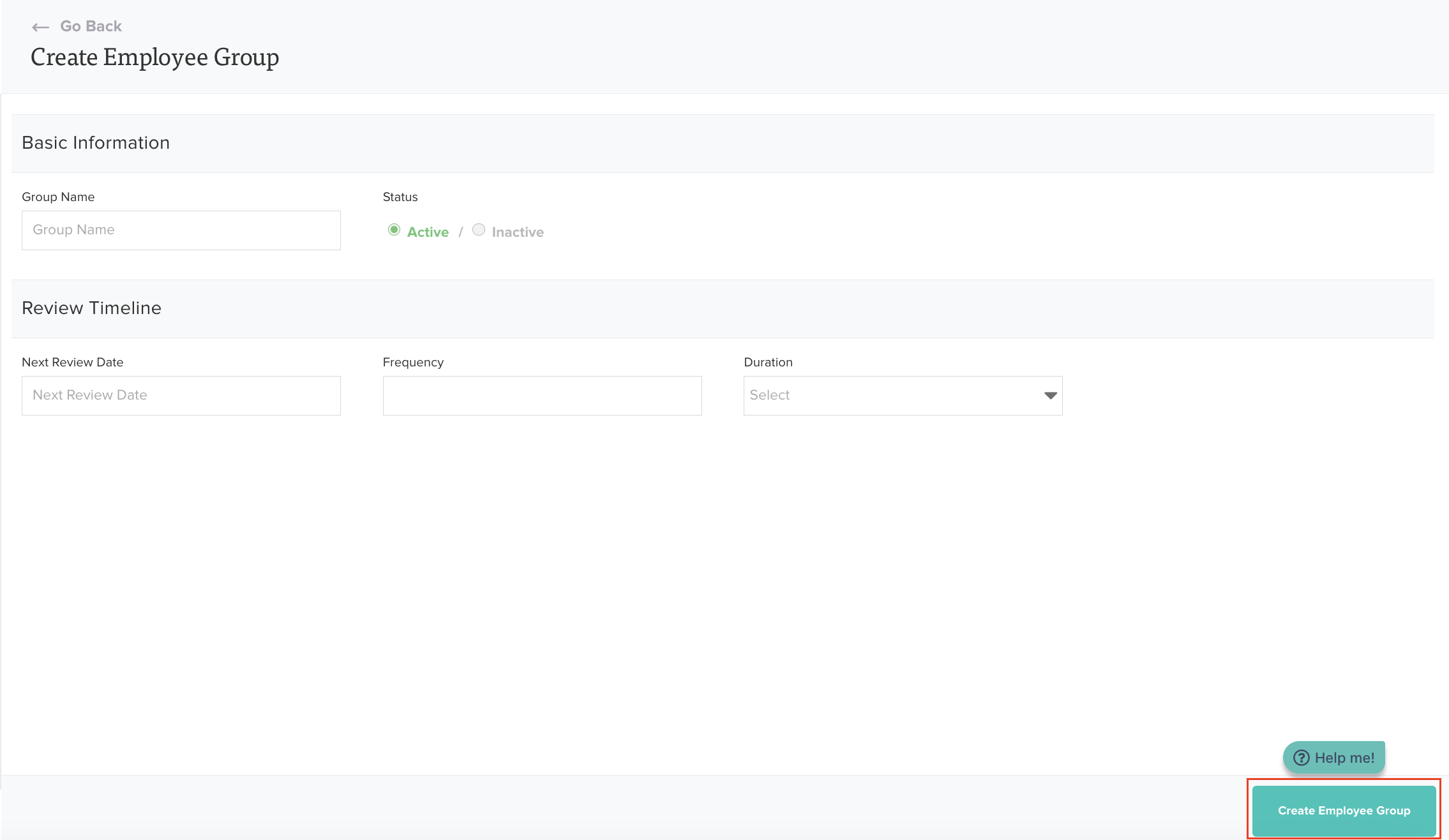
Step #8
Add Employees to the Group.
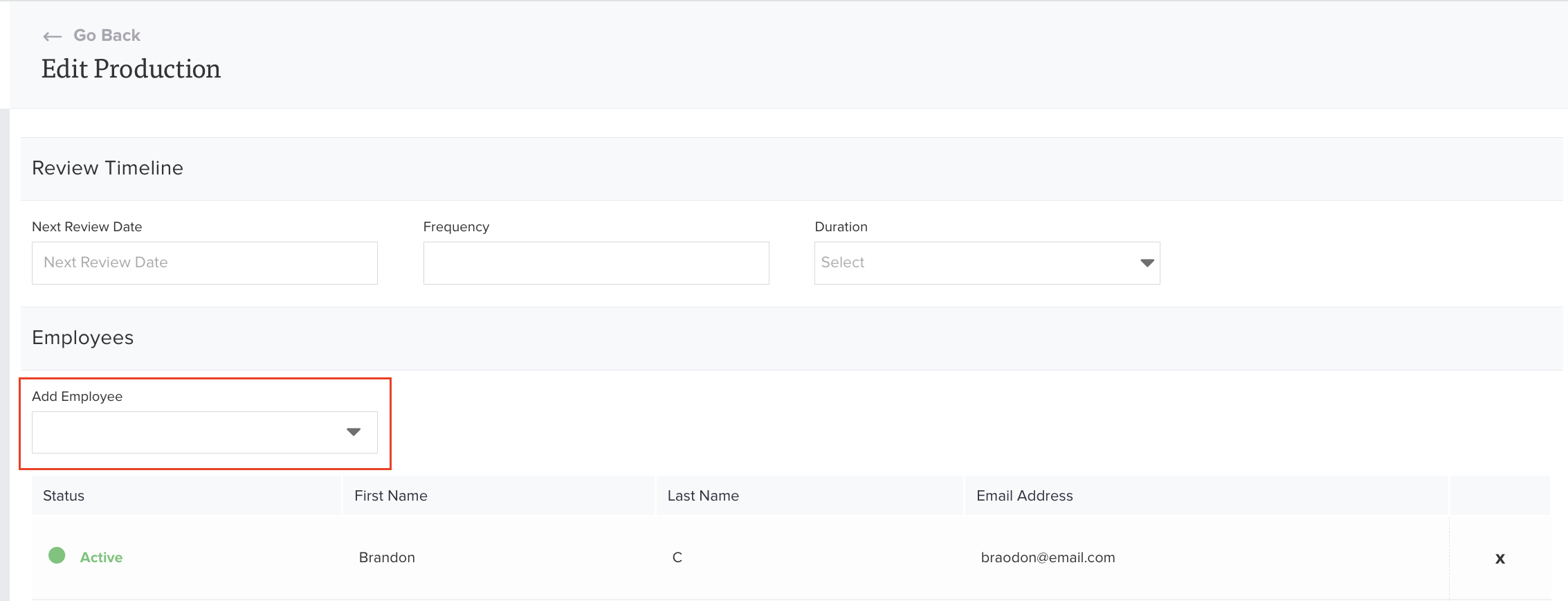
Note: Employees can also be added to Employee Groups in the Employee Manager Module, for more information click here.
Was this article helpful?
That’s Great!
Thank you for your feedback
Sorry! We couldn't be helpful
Thank you for your feedback
Feedback sent
We appreciate your effort and will try to fix the article