Click here to view the "Team Settings" video
Please Note: After enabling this setting you will have to navigate to each template to assign authorized users. Failure to do this will results in your employees being unable to create Inspections.
Step #1
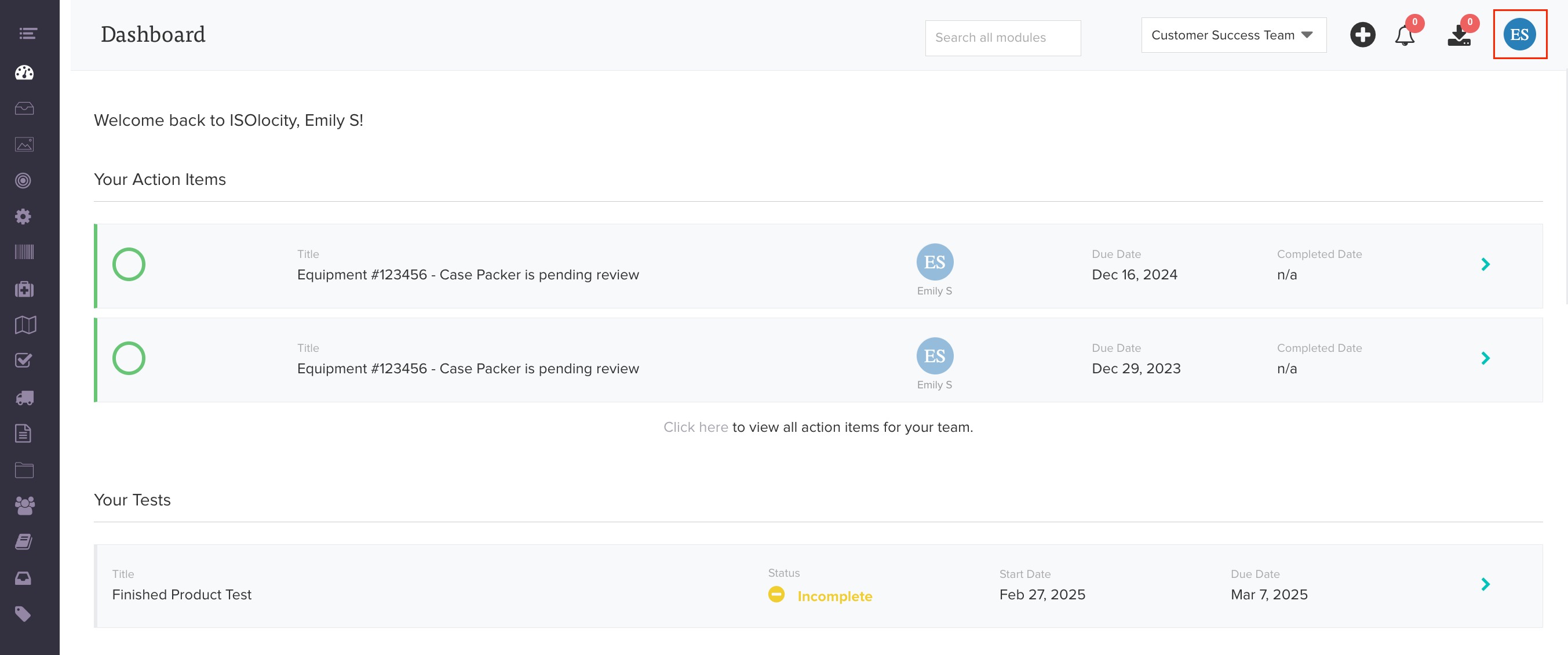
Click on your profile picture or initials to reveal the quick-start menu.
Step #2
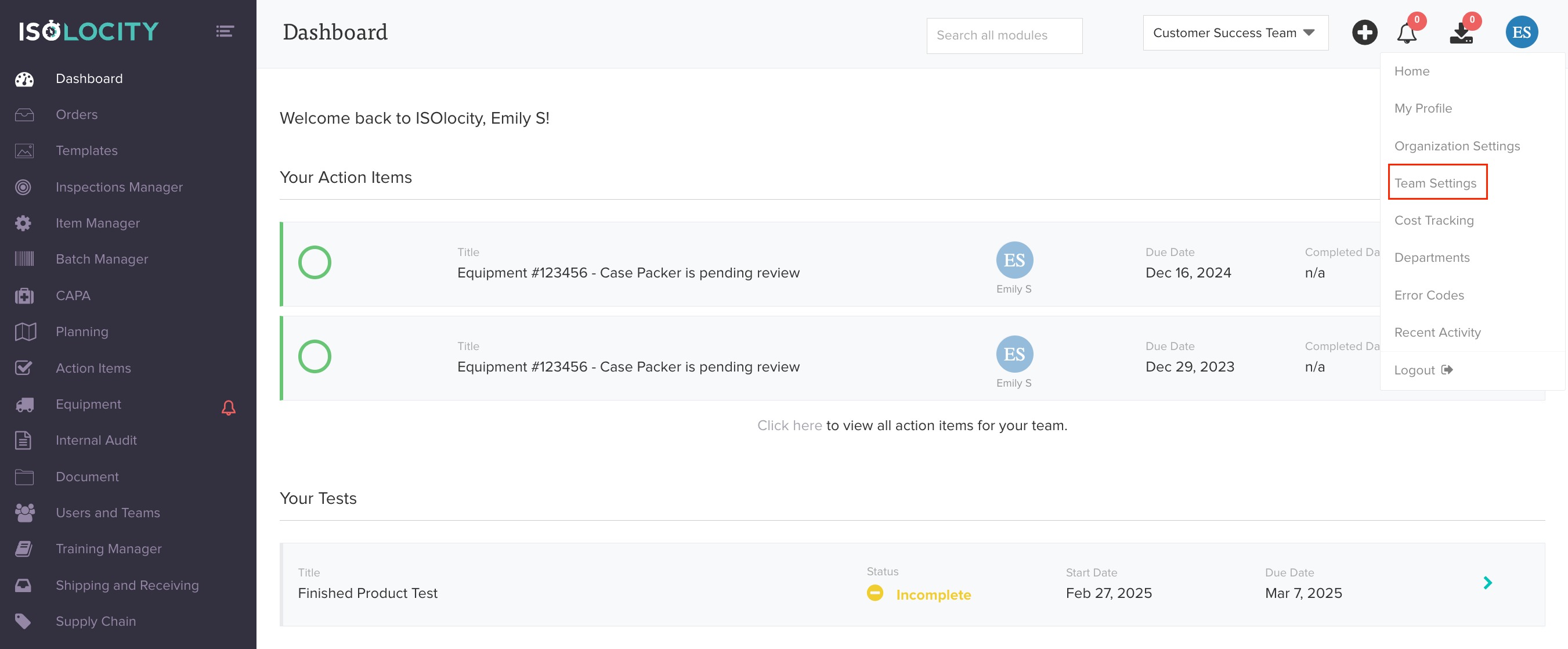
Click "Team Settings".
Don't see Team Settings? That's because it only shows up if you're an Admin user.
Step #3
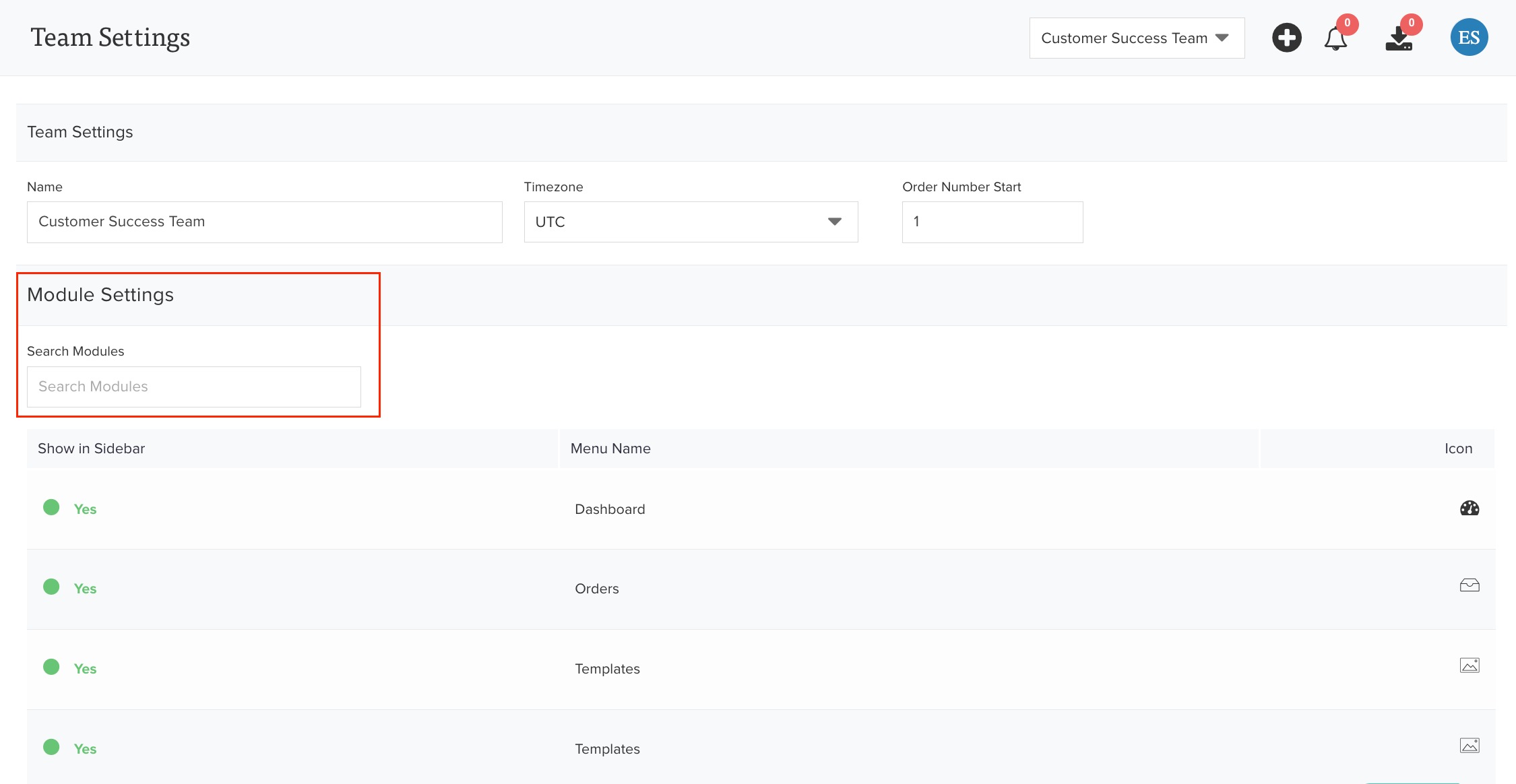
Search for the Templates module.
Step #4
Toggle on "Only authorized users can open and contribute to inspections".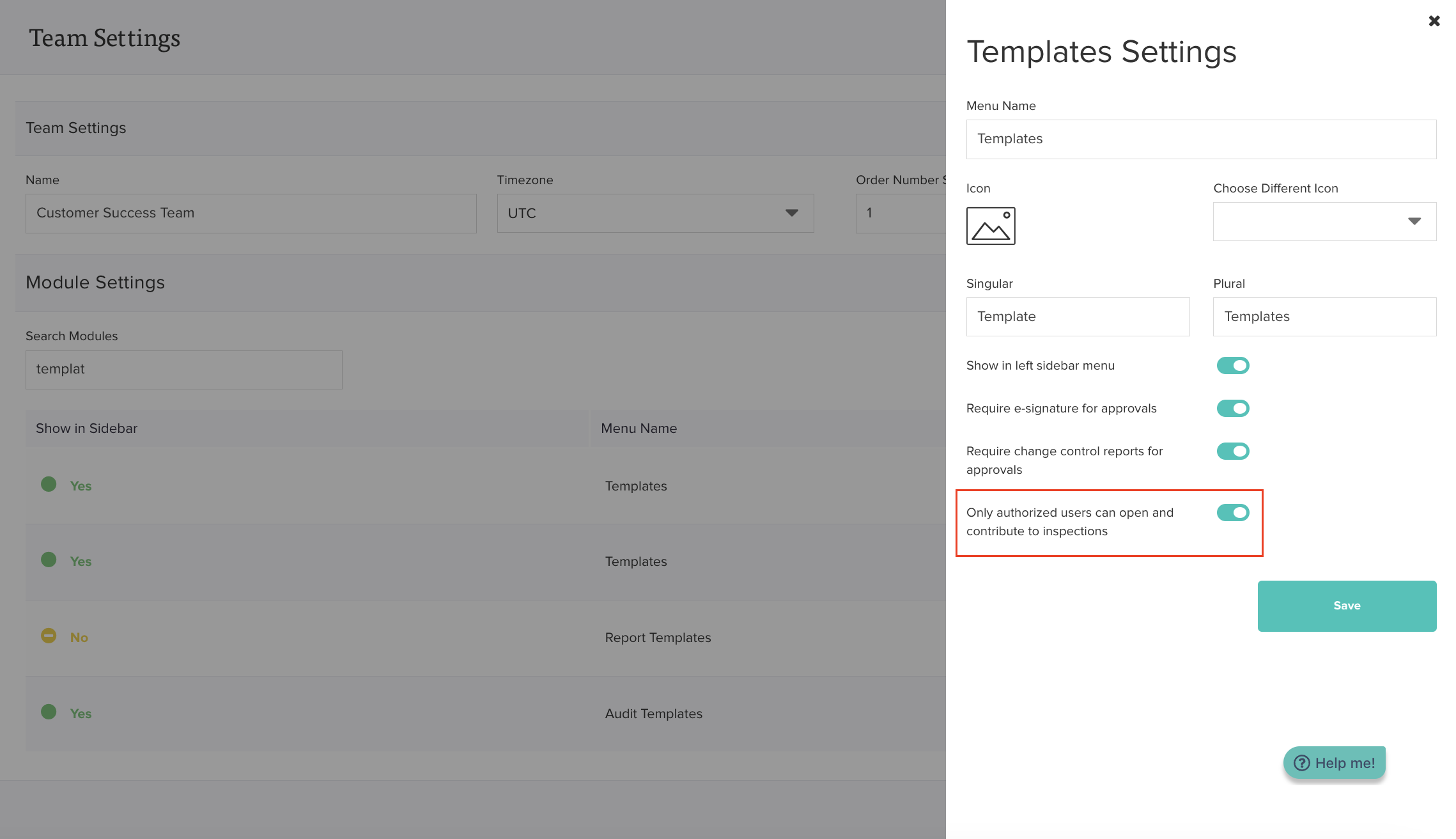
Step #5
Click "Save".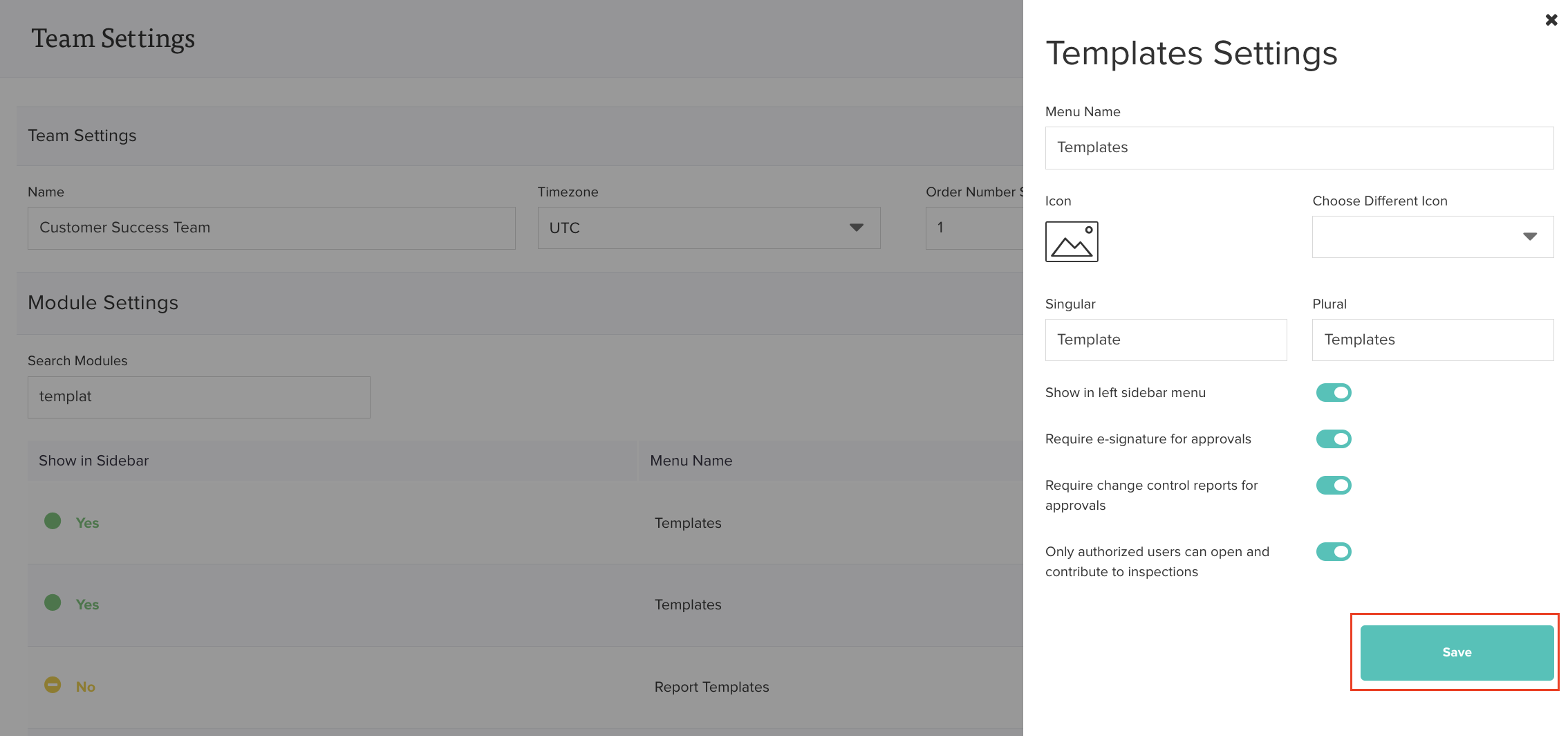
Was this article helpful?
That’s Great!
Thank you for your feedback
Sorry! We couldn't be helpful
Thank you for your feedback
Feedback sent
We appreciate your effort and will try to fix the article