You can change a user's permission level at any time from the User Manager by updating their role.
Before you Start
A user's permission level is set by their Primary Role, which is first chosen when the user is created. Only Admins can change a user's role. For a description of what each role can access, see Isolocity's user access permissions.
If your organization uses Azure: Change the user's role in Azure instead of in Isolocity. Roles managed through Azure will revert to the Azure settings, so any change made only in Isolocity will be overwritten. For more on how Azure works with Isolocity, see the Azure Active Directory (AD) User Guide.
Keep in mind that Employees are users who have access at no cost but do not have full database access. If someone only needs assigned training, the Employee role may be all they need. If they need to work in the system, such as creating documents or approving records, they will need a higher role.
Billing: Changing a user's permission level will adjust your billing accordingly. For example, changing an Employee to a higher role will add a paid user to your account. For questions about pricing, see FAQs for "Pricing & Billing".
To learn how users are set up in the first place, see Adding A User.
Steps
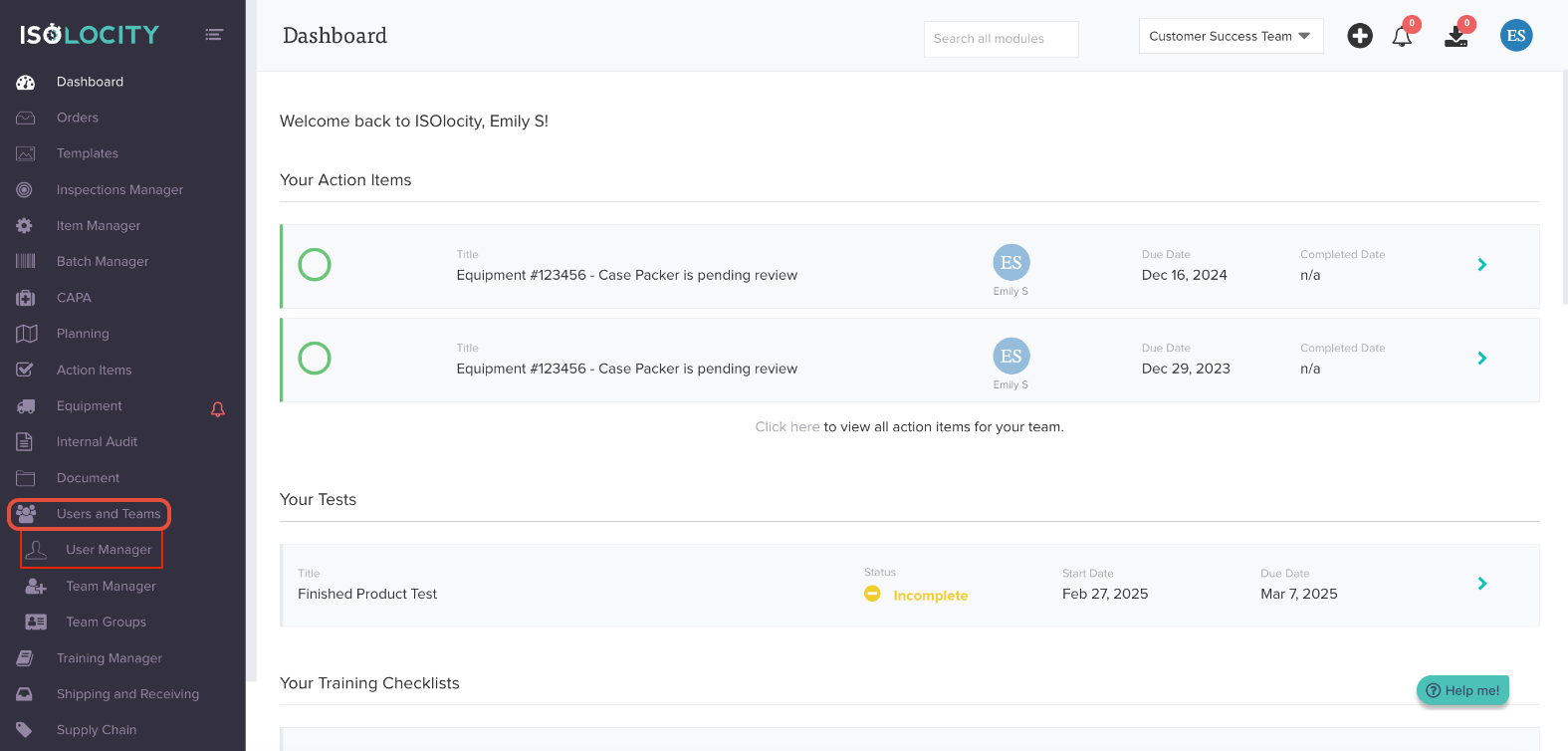
1. Open the User Manager. In the left side bar, click Users and Teams to reveal the sub-menu, then click Users.
2. Find the user. Locate the user whose permission level you want to change and open their record.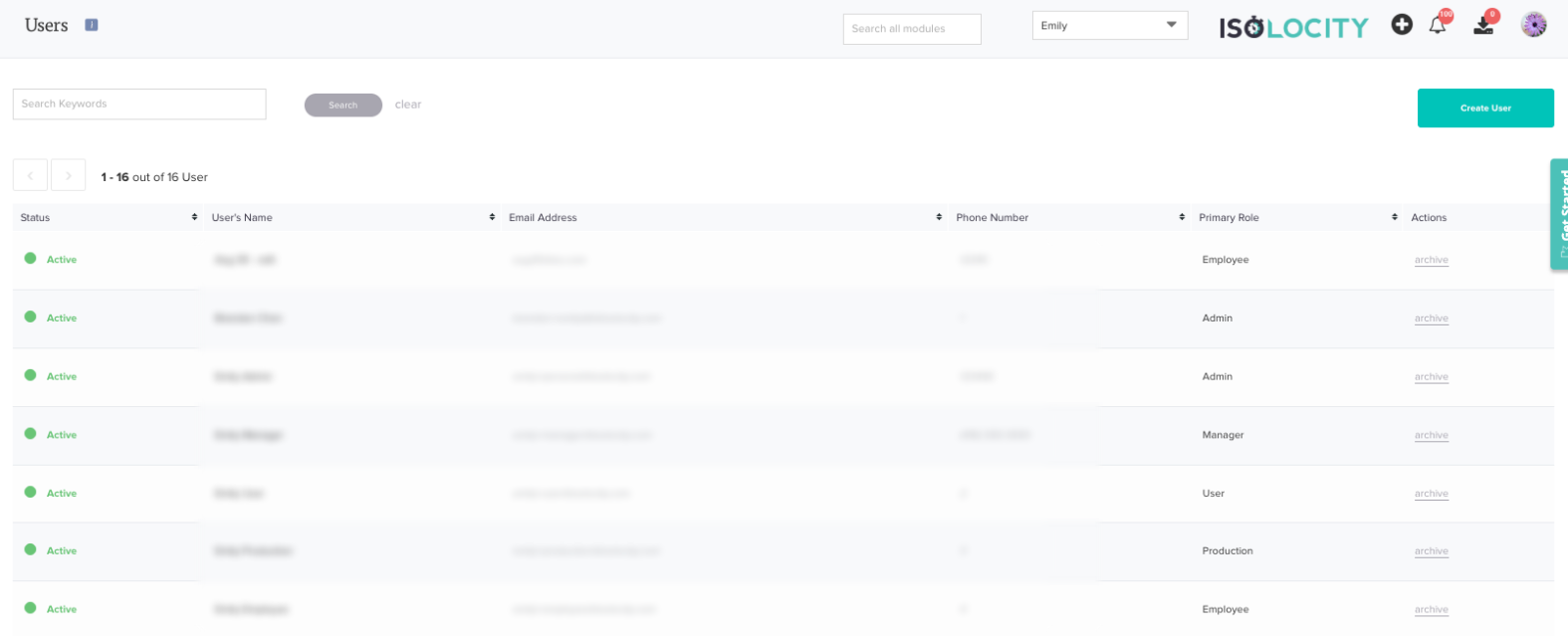
3. Change the Primary Role. Select the new role from the Primary Role dropdown.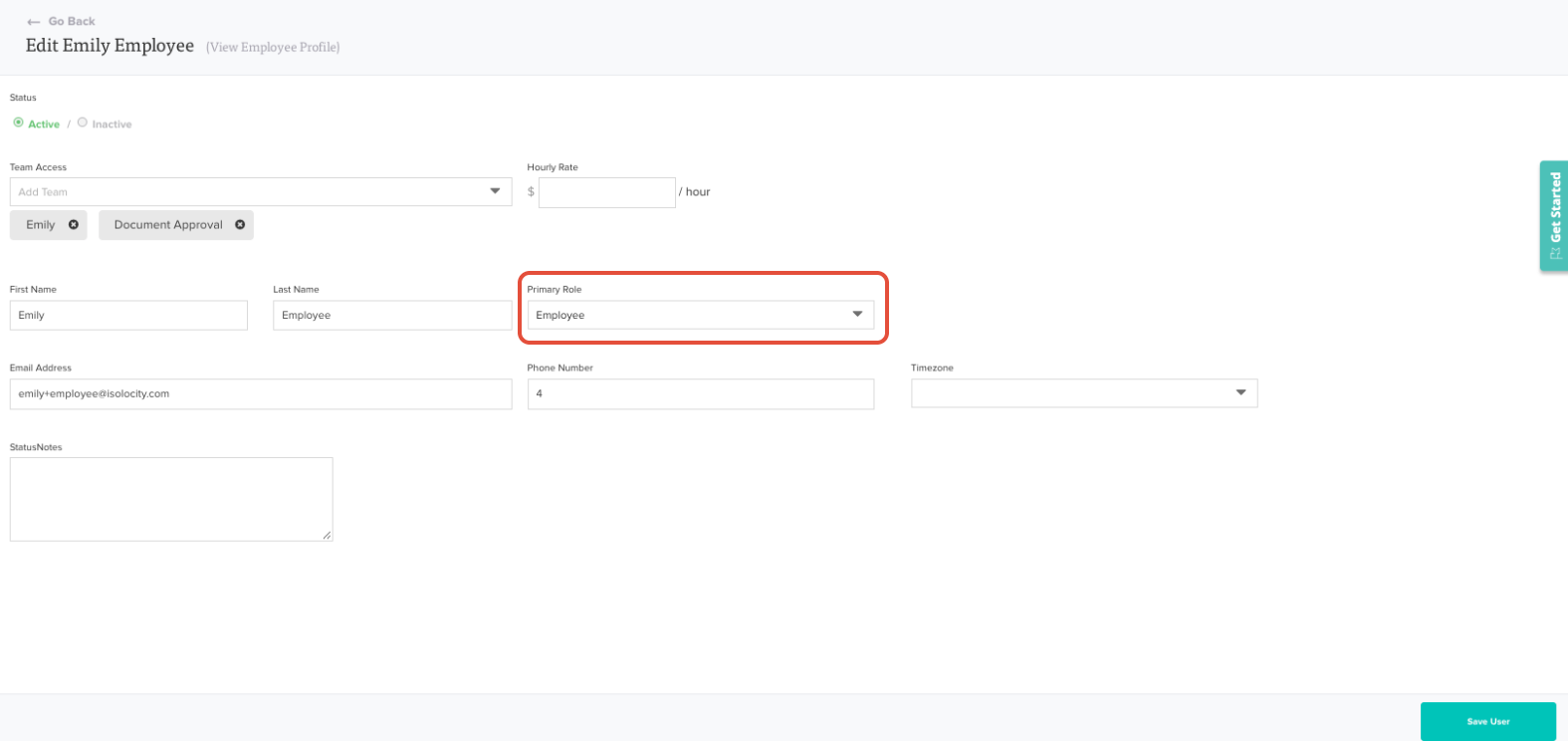
4. Save your changes. Click the save button to apply the new permission level. Your changes will not be kept unless you save.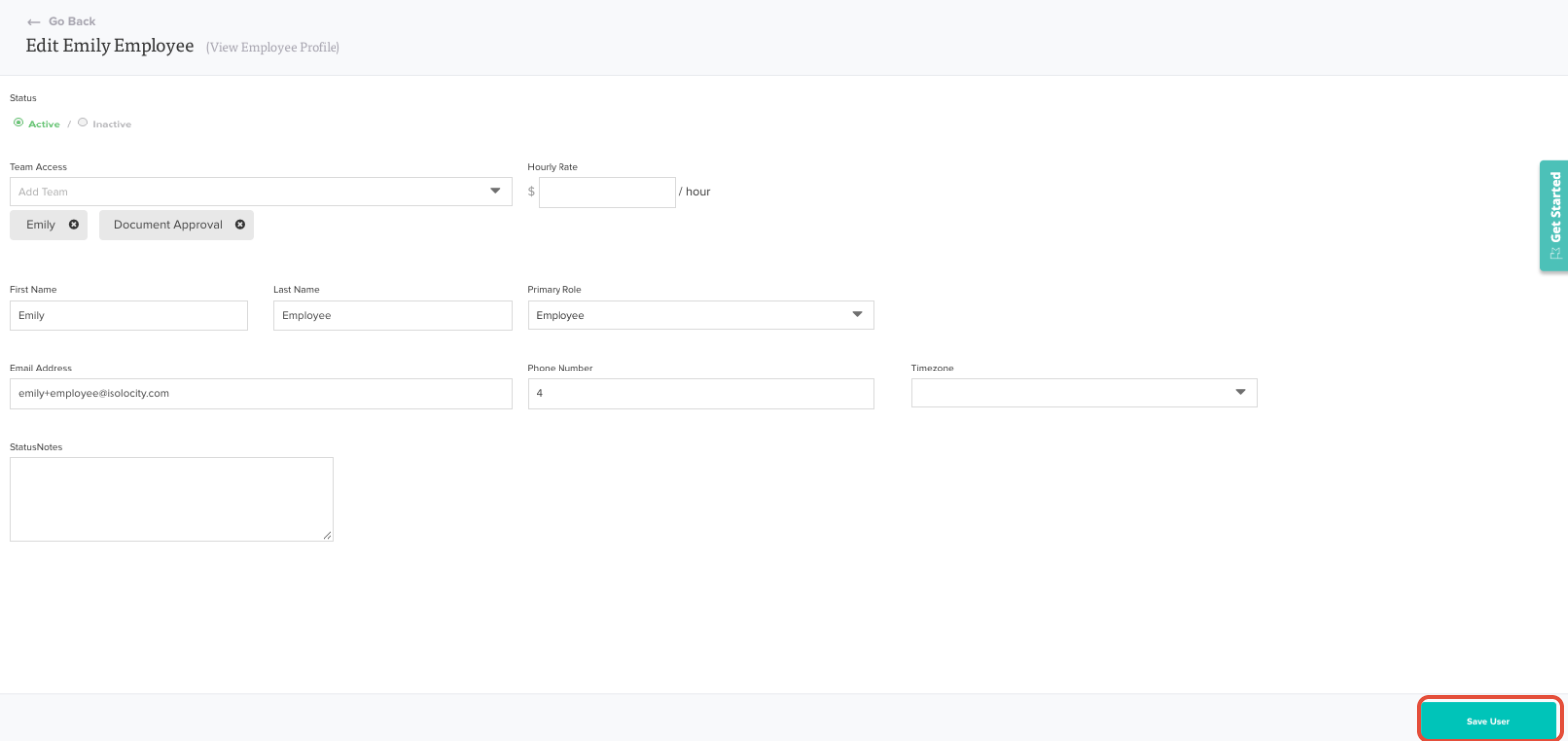
5. Have the user log out and back in. To make sure the new permissions take effect, ask the user to log out of Isolocity and log back in. If they still don't see the right access, have them clear their browser cookies and log in again.
Was this article helpful?
That’s Great!
Thank you for your feedback
Sorry! We couldn't be helpful
Thank you for your feedback
Feedback sent
We appreciate your effort and will try to fix the article